
Login to Company Laptop?
This guide walks you through logging into a corporate Azure AD-joined or AD Joined Windows Laptop from a remote location using your Microsoft work credentials. You'll connect to Wi-Fi, select the right login option, and authenticate securely.
🖥️ Step 1: Power On the Laptop
Turn on your Azure AD-joined laptop.
📶 Step 2: Connect to Wi-Fi
Before logging in, ensure the device is connected to the internet.
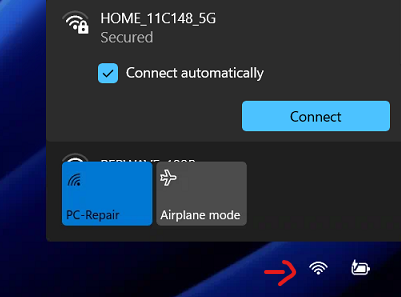
2.1 Click the Wi-Fi Symbol
-
On the bottom-right corner of the login screen, click the Wi-Fi icon.


2.2 Select Your Network
-
Choose your home or other available Wi-Fi network.
-
Enter the Wi-Fi password if prompted.
-
Wait until the status shows Connected.
👤 Step 3: Select "Other User"
Once Wi-Fi is connected:
-
On the login screen, if you don't see your Name, click "Other user".

🔐 Step 4: Log in with Work Credentials
Enter your Microsoft work email credentials:
-
Username: yourname@company.com
-
Password: your Microsoft 365 password
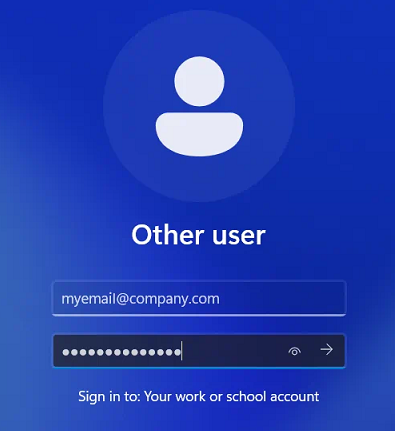
✅ Ensure you are using the fully qualified email address, not just the username.
🏁 Step 5: Login and Desktop Access
-
The system will verify your credentials against Azure AD.
-
Once authenticated, you’ll be logged in to your desktop.
-
First-time login may take a few minutes as your profile is set up.
✅ Tips
-
🔁 If login fails, double-check internet connection and credentials.
-
🔐 You may be prompted for Multi-Factor Authentication (MFA) if your organization enforces it.
No Comments