
Share your Outlook mailbox/folders (Reviewer access) and how the Reviewer opens them
Applies to: Classic Outlook Desktop (Windows) and Outlook on the web (OWA / outlook.office.com)
Goal: Give another employee read-only (“Reviewer”) access to mail folders (or as much of your mailbox as needed).
What “Reviewer” means
Reviewer = read items only (no create/edit/delete).
Before you start (important notes)
-
This works for work/school Microsoft 365/Exchange mailboxes (delegate/folder sharing requires that setup).
Sharing Access
Classic Outlook Desktop (Windows)
Mailbox owner: Share a folder and set “Reviewer”
-
In the Folder Pane, right-click the folder you want to share (ex: Inbox or a subfolder or full email by right clicking on your email address) → Properties.
-
Go to the Permissions tab → select Add.
-
Select the person (or group) from the address list → Add → OK.
-
Click the person’s name → set Permission Level = Reviewer → OK.
Outlook on the web (OWA / outlook.office.com)
Mailbox owner: Share a folder and set “Reviewer”
-
Right-click the folder (ex: Inbox or a subfolder or full email by right clicking on your email address) → Sharing and permissions.
-
Select + → enter the person’s name/email → Add.
-
Select the person → Permission level = Reviewer → OK.
Tip: if sharing a subfolder, share the parent folder(s) too.
Reviewer: How to access the shared mailbox/folders
Classic Outlook
-
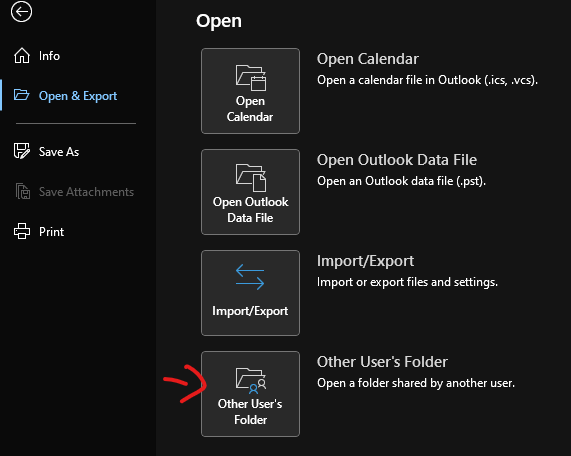
File > Open & Export > Other User's Folder
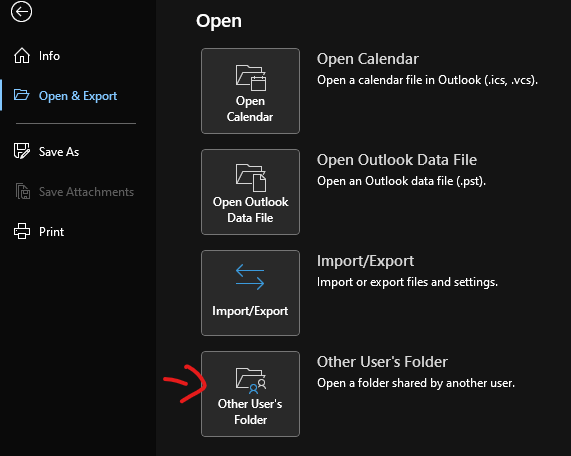
-
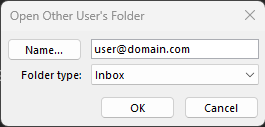
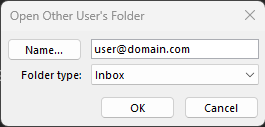
Type the mailbox owner’s name and change Folder Type (if needed) → OK → and see if shows up, otherwise restart Outlook.
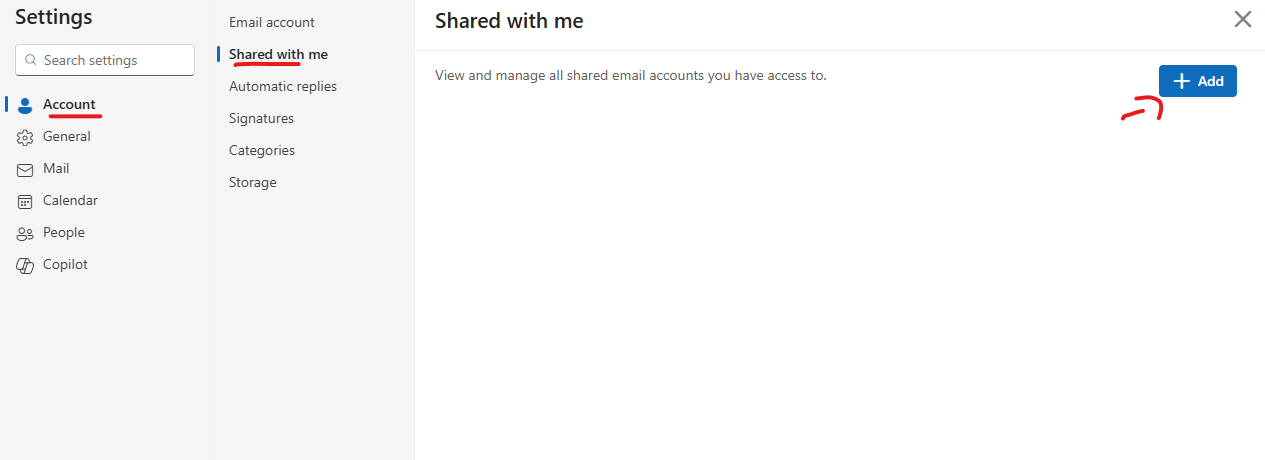
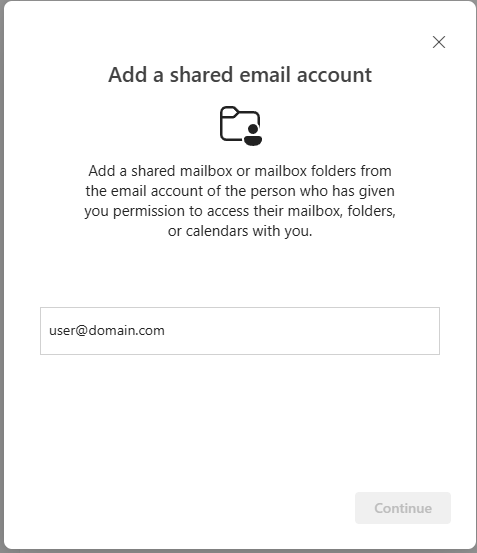
Reviewer: Access shared folders in OWA
-
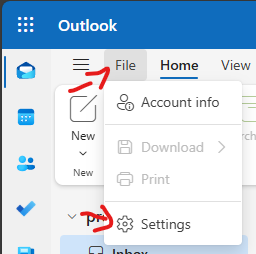
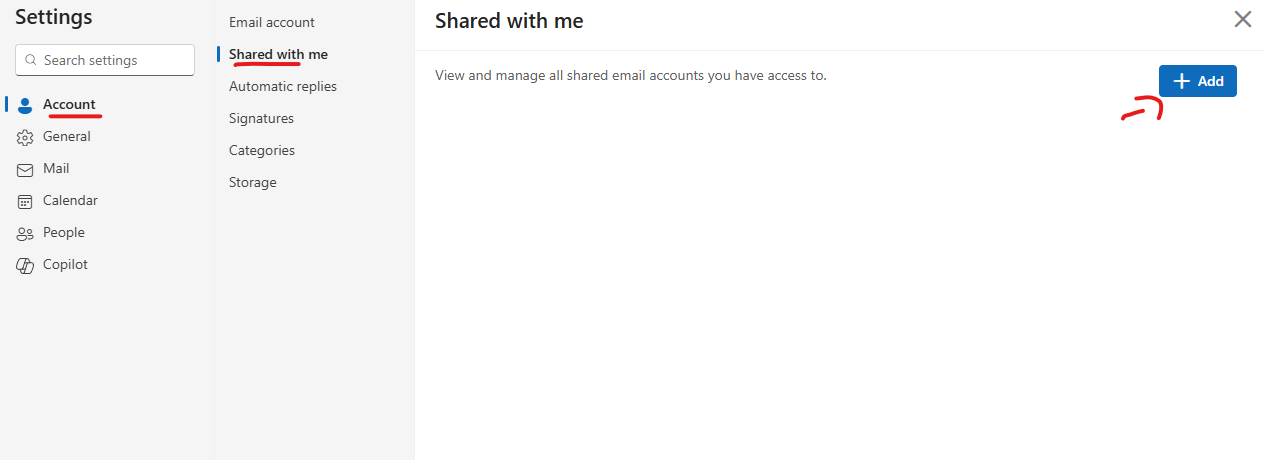
In Outlook Click File → Settings → Account → Shared with Me → Add
-
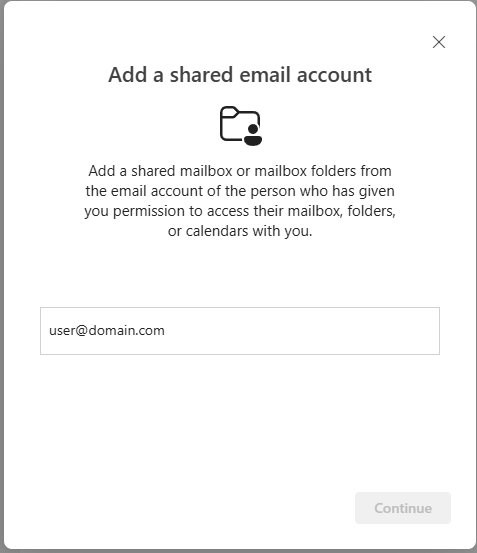
Enter the mailbox owner’s name/email → Continue.
-
Expand the owner’s name under Shared with me to see the folders they shared. And on the Main Outlook Screen you will Another Email Address Popup.
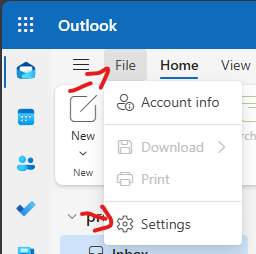
Open the whole mailbox in a separate window (when you have mailbox access)
Top-right profile/name → Open another mailbox → type mailbox name → Open.