
How to Encrypt Email in Outlook (Microsoft Preview using Microsoft 365 Business Premium)
This article explains how to encrypt emails using Microsoft Purview Message Encryption (OME) in Outlook, available with Microsoft 365 Business Premium. Encryption protects message contents and attachments so only intended recipients can read them.
When to use email encryption
Use encryption when sending:
-
Sensitive customer/student/patient data
-
Financial info (invoices, bank details)
-
Credentials or access details (temporary passwords, links to restricted systems)
-
HR/employee information
-
Any message that should not be forwarded or read by unintended people
What encryption does: encrypts the message in transit and at rest and enforces the protection policy applied (for example, “Encrypt” or “Do Not Forward,” depending on what your organization allows).
Before you start (important notes)
-
You must be signed in with your work account that has Microsoft 365 Business Premium or Higher License and your organization must have encryption enabled.
-
Recipients outside your organization can still read encrypted messages. They may be asked to verify their identity (for example, via a one-time passcode) depending on settings.
-
Encryption is different from S/MIME. This guide is for the built-in Encrypt option in Outlook tied to Microsoft 365.
Outlook Desktop (Classic) — Windows/Mac
These steps cover Outlook Classic using the Encrypt option while composing an email.
Encrypt a single email
-
Open Outlook (Classic).
-
Select New Email.
-
Compose your message and add recipients/subject/attachments.
-
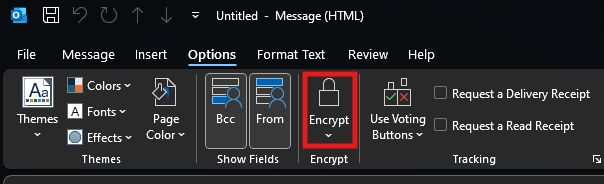
In the message window, go to the Options tab.
-
Select Encrypt.
-
Choose Encrypt (or other options you see, such as Do Not Forward, if available).
-
Click Send.
What you should see
-
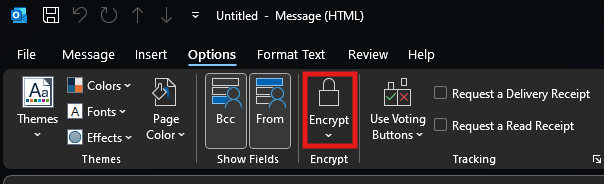
After selecting Encrypt, Outlook usually displays an indicator (like “Encrypt” being highlighted) or the chosen protection in the message window.
If you don’t see “Encrypt” on the Options tab
Try:
-
Make sure you are in the full message compose window (not a simplified reading pane compose).
-
Confirm you’re signed into the correct work account.
-
Update Outlook (File → Office Account → Update Options).
-
If it’s still missing, contact IT, your tenant policies may hide or restrict it.
Outlook on the Web (OWA)
Encrypt a single email
-
Go to Outlook on the web (open mail in your browser).
-
Click New mail.
-
Compose your message.
-
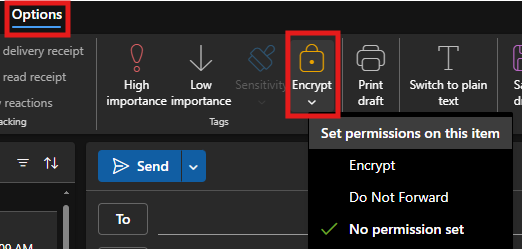
In the compose window, click Options (or the … More options menu depending on your layout).
-
Select Encrypt.
-
Click Send.
Tip
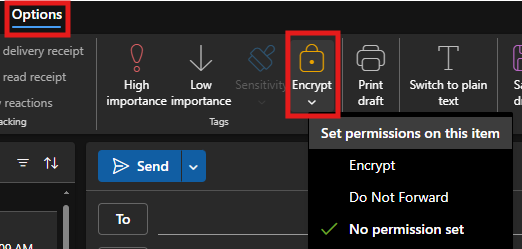
If your organization offers multiple protection choices, you may see options like:
-
Encrypt
-
Do Not Forward
-
Other labeled protections (custom policies)
Pick the one that matches your need.
Outlook Mobile (iOS/Android)
Outlook mobile supports encryption, but the exact button placement can vary by version and organization policy.
Encrypt a single email
-
Open the Outlook app on your phone.
-
Tap Compose (pencil icon).
-
Draft your email.
-
Tap the … (More) menu (often in the top right).
-
Look for Encrypt, Security, or Protection.
-
Select Encrypt (or the appropriate protection label).
-
Send the message.
If you don’t see Encrypt on mobile
-
Some organizations allow encryption only from desktop/web, or require a specific Outlook mobile build.
-
Try sending from Outlook on the web or Outlook Desktop (Classic).
-
If it should be available, contact IT with: your device type, Outlook app version, and a screenshot of the compose menu.
What recipients experience (internal vs. external)
Internal recipients (same organization)
-
Often see the message normally in Outlook, with an encryption/protection banner.
External recipients (outside organization)
They may:
-
Read the message directly in their email client (in some cases), or
-
Receive a message with a button/link like “Read the message” and then:
-
Sign in with a Microsoft/Google account, or
-
Use a one-time passcode sent to their email (depends on your org’s encryption settings)
-
Attachments: protected as part of the encrypted message experience.
Best practices
-
Encrypt before you send. Adding encryption after sending isn’t reliable.
-
Keep subjects non-sensitive. Some encryption methods protect the message body and attachments but subjects may still be visible.
-
Use the minimum necessary protection. If “Do Not Forward” is available and appropriate, consider it when you want to prevent sharing.
Troubleshooting checklist
If encryption isn’t working as expected:
-
Confirm license & account
-
You must be using the correct work mailbox licensed for Business Premium.
-
-
Confirm you’re using Outlook Classic / OWA / supported mobile app
-
Some older builds may not show the option.
-
-
Check policy availability
-
If the Encrypt button is missing, your org may have disabled it or limited it to certain groups.
-
-
Try another client
-
If mobile is missing the option, test on Outlook on the web or Desktop.
-
-
Escalate to IT
Provide:-
Screenshot of the compose window (Options tab or “…” menu)
-
Your Outlook version (Desktop: File → Office Account)
-
Recipient domain (internal/external)
-
Any error text
-