Keep in mind, sharing the shortcut to other computers will likely not work, due to how its created and tied to specific profile, unless they change it in the future. So this would need to be done usually per user and per computer basis.
## Edge Browser #### Link to Taskbar 1. Go to the website/link you want to save 2. Click on the 3 dots on the top right 3. Go to More Tools 4. Click on Pin to Taskbar[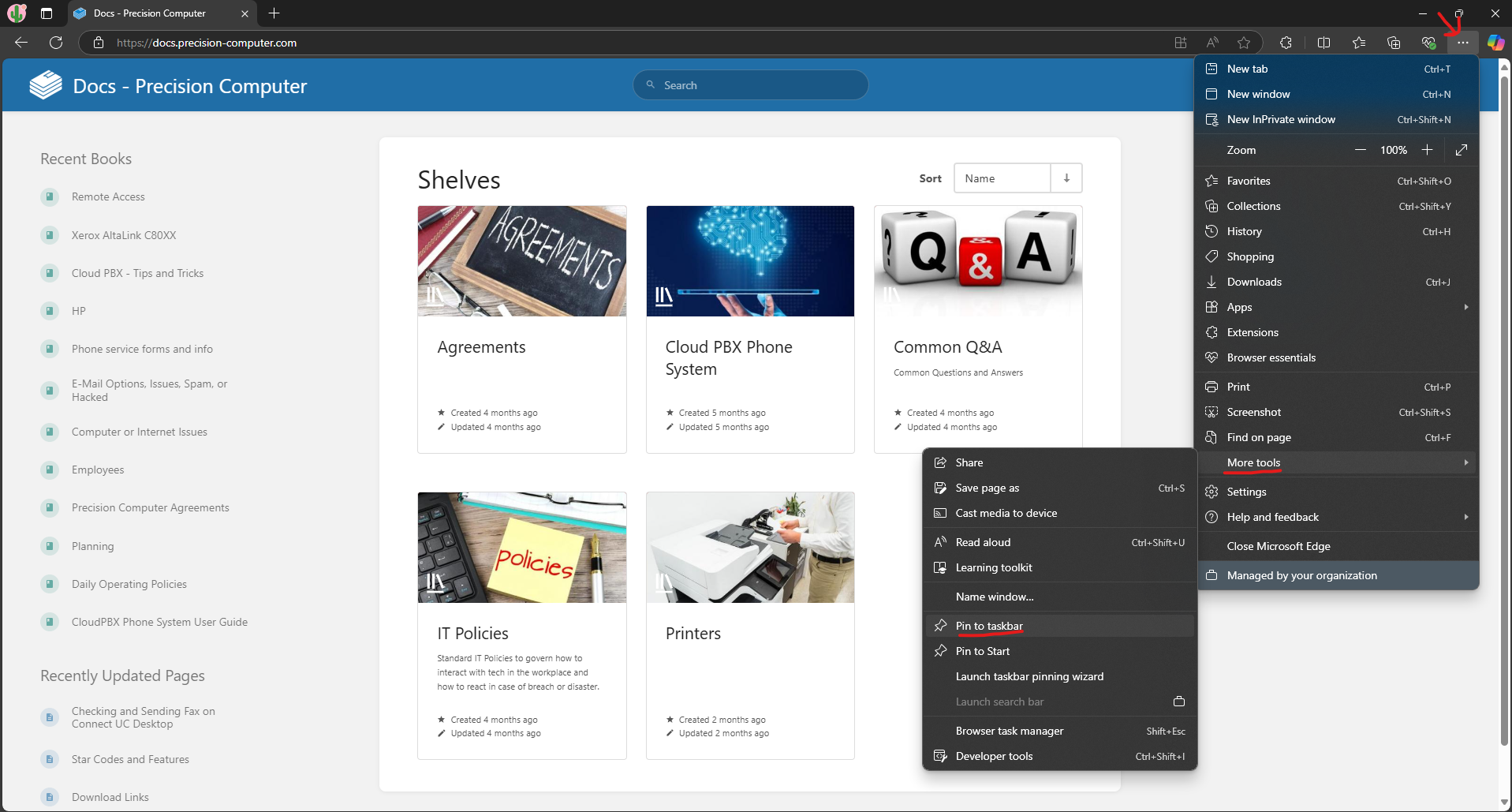](https://docs.precision-computer.com/uploads/images/gallery/2025-01/GkaKkRJQjinZ661e-image.png) 5. Click Yes when it asks for permission [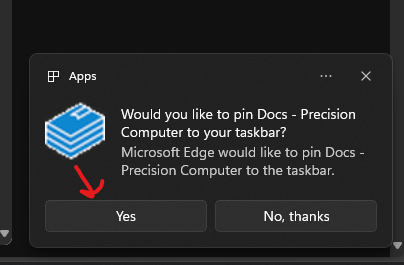](https://docs.precision-computer.com/uploads/images/gallery/2025-01/1tSHRBnZ18mPVwKZ-image.png) 6. Now you should have an Icon at the bottom in your taskbar [](https://docs.precision-computer.com/uploads/images/gallery/2025-01/hmQtXKlwnirD0KUY-image.png) #### Desktop Shortcut 1. Follow steps "Link to Taskbar" 2. Then simply hold the Shift key on your keyboard and then right click on the icon 3. You will get a little menu, press Create Shortcut [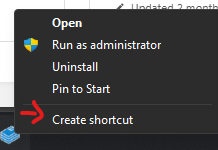](https://docs.precision-computer.com/uploads/images/gallery/2025-01/nntXBxenmwQR8dGU-image.png) 4. You may get a message asking to put on desktop instead, press yes [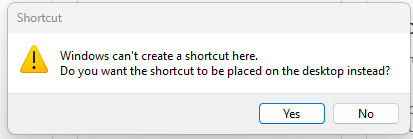](https://docs.precision-computer.com/uploads/images/gallery/2025-01/F6G0QkxvEgJnAg9O-image.png) 5. Now you should see the Icon on your Desktop [](https://docs.precision-computer.com/uploads/images/gallery/2025-01/ITkhfqq4sOvveNtQ-image.png) ## Google Chrome #### Desktop Shortcut 1. Go to the website/link you want to save 2. Click on the 3 dots on the top right 3. Go to Cast, Save, and Share 4. Go to Create Shortcut [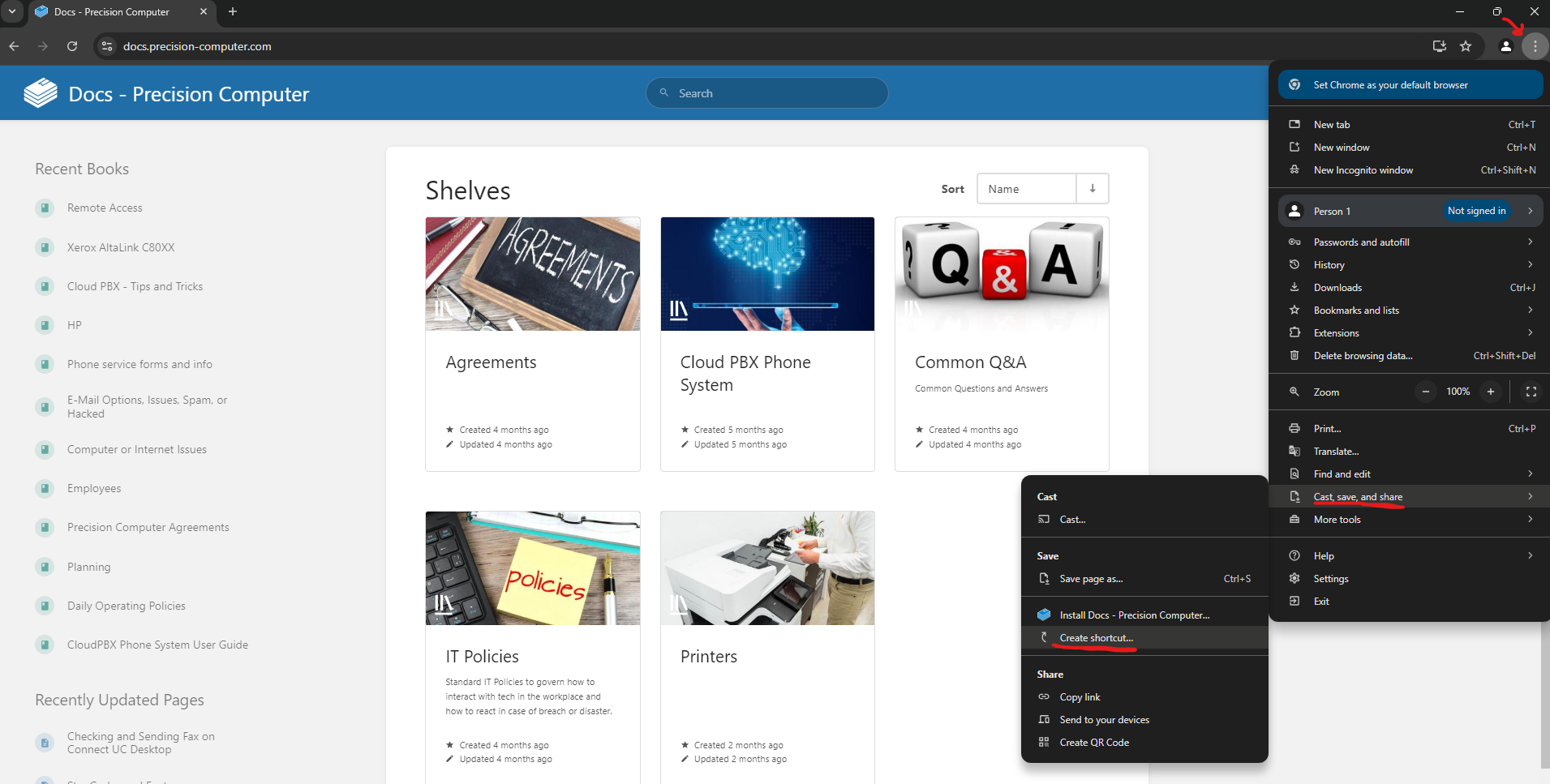](https://docs.precision-computer.com/uploads/images/gallery/2025-01/BH0RtLIweh2ImybA-image.png) 5. It will ask to confirm the name, you may change it then click Create [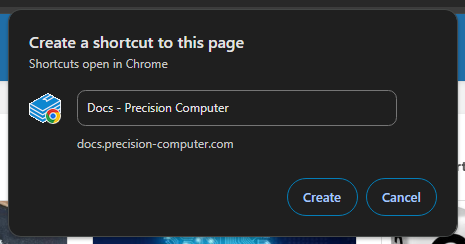](https://docs.precision-computer.com/uploads/images/gallery/2025-01/99YW8tk0sTnhZeU0-image.png) 6. Navigate to your desktop and see the Icon Appear [](https://docs.precision-computer.com/uploads/images/gallery/2025-01/lIVc3wydUPxSf6Zg-image.png) #### Pin to Task Bar Follow the same steps as above "Desktop Shortcut (for Chrome)", but drag the Desktop Icon onto your Taskbar and let go [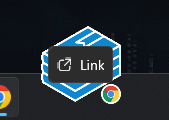](https://docs.precision-computer.com/uploads/images/gallery/2025-01/giyRuESVMcpLqc6Z-image.png) Then it should stay on your taskbar # How do I find my computer name? Some times you need to identify which computer you are at, or need help with, and possibly there is no label on the computer or somethings got swapped around and your not sure... Easiest way to find out, is when your computer is booted, check "System Information" ##### System Information 1. Press the Start Icon [](https://docs.precision-computer.com/uploads/images/gallery/2024-11/FGVmBeWIjJmzlkUG-image.png) 2. Start typing "System Information" (likely it will popup after you type in the first several letters) [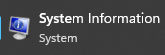](https://docs.precision-computer.com/uploads/images/gallery/2024-11/Uge3LIaFZjeoxdoU-image.png) 3. Look for "System Name" and that should be your computer name [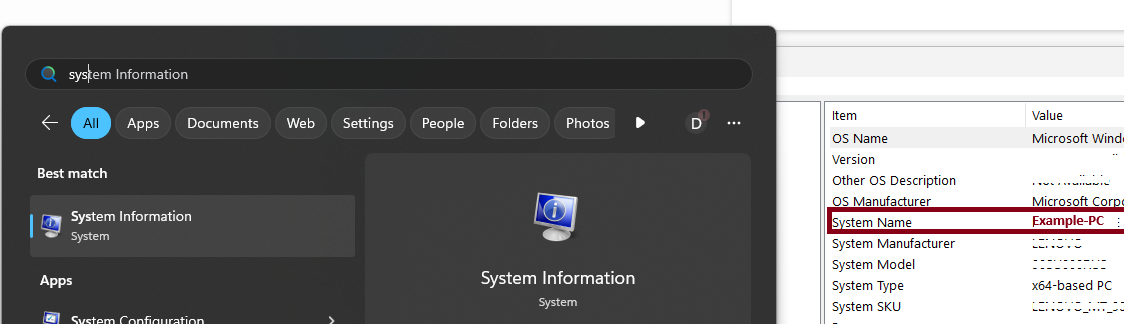](https://docs.precision-computer.com/uploads/images/gallery/2024-11/alzzxjMeTTnH7Rli-image.png) Now, System Name may not be Unique enough, you may provide "System SKU", or simply take photo of the window and text it to our support number - 660-827-1500 for additional help. # Login to Company Laptop? This guide walks you through logging into a corporate Azure AD-joined or AD Joined Windows Laptop from a remote location using your Microsoft work credentials. You'll connect to Wi-Fi, select the right login option, and authenticate securely. ## 🖥️ Step 1: Power On the Laptop Turn on your Azure AD-joined laptop. --- ## 📶 Step 2: Connect to Wi-Fi Before logging in, ensure the device is connected to the internet. ### 2.1 Click the Wi-Fi Symbol - On the **bottom-right** corner of the login screen, click the **Wi-Fi icon**. [](https://docs.precision-computer.com/uploads/images/gallery/2025-05/5TIfa2ZzjIPmqSx7-image.png) ### 2.2 Select Your Network - Choose your home or other available Wi-Fi network. - Enter the Wi-Fi **password** if prompted. [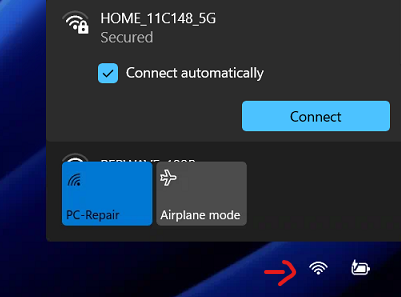](https://docs.precision-computer.com/uploads/images/gallery/2025-05/tv9xVFgwNyWYKzXk-image.png) - Wait until the status shows **Connected**. --- ## 👤 Step 3: Select "Other User" Once Wi-Fi is connected: - On the login screen, if you don't see your Name, click **"Other user"**. [](https://docs.precision-computer.com/uploads/images/gallery/2025-05/ilTPTRp4GUj57qKt-image.png) --- ## 🔐 Step 4: Log in with Work Credentials Enter your Microsoft work email credentials: - **Username**: yourname@company.com - **Password**: your Microsoft 365 password [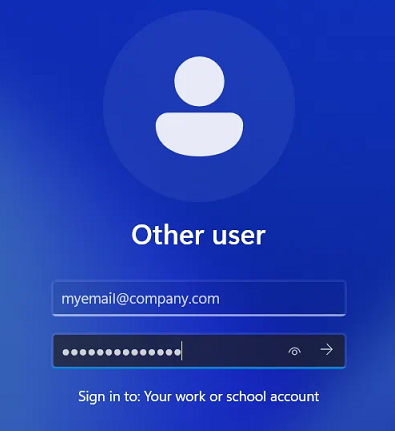](https://docs.precision-computer.com/uploads/images/gallery/2025-05/RDm5Fpk9Lkmibcbf-image.png) > ✅ Ensure you are using the **fully qualified email address**, not just the username. --- ## 🏁 Step 5: Login and Desktop Access - The system will verify your credentials against Azure AD. - Once authenticated, you’ll be logged in to your desktop. - First-time login may take a few minutes as your profile is set up. --- ## ✅ Tips - 🔁 If login fails, double-check internet connection and credentials. - 🔐 You may be prompted for **Multi-Factor Authentication (MFA)** if your organization enforces it. # Change Preferences # How do I change between Dark and Light Windows Theme ## Quick start (everything Light or Dark) ⚡ 1. **Right-click** the desktop → **Personalize** 🖼️ [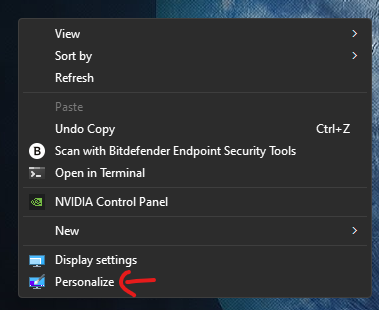 ](https://docs.precision-computer.com/uploads/images/gallery/2025-10/rOjisw1gULdmFnYW-image.png)[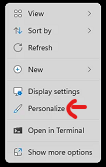](https://docs.precision-computer.com/uploads/images/gallery/2025-10/fzAMwfFmN0NJtCrl-image.png) 2. Go to **Colors** 🎨 [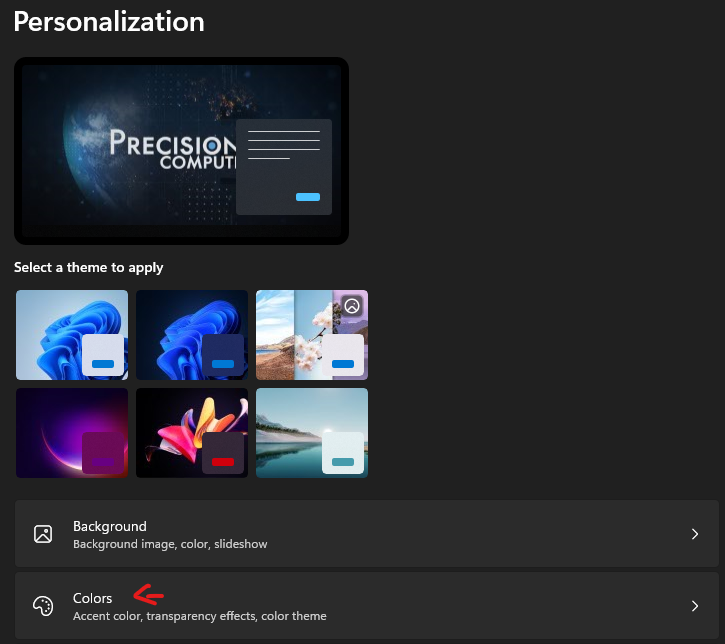](https://docs.precision-computer.com/uploads/images/gallery/2025-10/UNTUZER6qxjwPauO-image.png) 3. Under **Choose your mode** select: - **Light** ☀️ — makes both apps and Windows menus light - **Dark** 🌙 — makes both apps and Windows menus dark --- ## Different look for Apps vs. Menus (Custom) 🧩 Want, say, a light taskbar but dark apps (or the reverse)? Do this: 1. **Right-click** desktop → **Personalize** → **Colors** 🎨 2. Set **Choose your mode** to **Custom** 🛠️ 3. Pick each separately: - **Choose your default Windows mode** = **Menus/UI** (Start, taskbar, Settings, File Explorer chrome) 🧭 - **Light** ☀️ or **Dark** 🌙 - **Choose your default app mode** = **Most apps** 🗂️ - **Light** ☀️ or **Dark** 🌙 > If you switch back to **Light** or **Dark** (not Custom), Windows will make **both** menus and apps match that choice. --- ## Optional niceties ✨ - **Transparency effects**: On the same **Colors** page, toggle **Transparency effects** to taste 🫧 - **Accent color**: Still in **Personalize → Colors**, choose **Accent color** (Auto/Manual) and whether it **shows on Start, taskbar, and title bars** 🎯 --- ## Notes 📝 - These steps work in **Windows 11 and Windows 10** (names look the same). - Some apps have their **own** theme switch; those can override your **default app mode**.