How to Troubleshoot Blue Screens
Blue screens—commonly known as the Blue Screen of Death (BSOD)—can be frustrating and disruptive. They often indicate a critical system error, which may be caused by hardware malfunctions, faulty drivers, or system file issues. This article provides a step-by-step guide to help you troubleshoot blue screens and run a memory scan to identify potential issues.
1. Understanding Blue Screens
What Are Blue Screens?
Blue screens occur when Windows encounters a fatal error that it cannot safely recover from. The screen typically displays an error code and sometimes a brief description of the issue. This information can be crucial in diagnosing the problem.
Common Causes Include:
- Faulty or outdated drivers
- Hardware malfunctions (e.g., bad memory or overheating components)
- Corrupt system files
- Software conflicts or recent changes to the system
2. Troubleshooting Blue Screens
A. Gather Key Information
- Note the Error Code: When the blue screen appears, jot down the error code and any accompanying messages. This code (e.g.,
0x0000007E,IRQL_NOT_LESS_OR_EQUAL) provides clues for further research. Logs are also stored on your computer for several days and can be found in C:\Windows\Minidump (But are usually limited to Admins or your IT) - Check Recent Changes: Consider any recent software installations, driver updates, or hardware modifications that might have triggered the issue.
B. Boot into Safe Mode
Safe Mode loads Windows with minimal drivers and services, allowing you to troubleshoot without interference from third-party software.
- How to Boot into Safe Mode:
- Restart your computer.
- Press
F8(or follow your manufacturer’s instructions) before Windows loads. - Choose “Safe Mode” from the boot options menu.
C. Update or Roll Back Drivers
- Update Drivers: Visit the manufacturer’s website for your hardware components and download the latest drivers.
- Roll Back Recent Updates: If the issue started after a driver update, roll back to the previous version:
- Open Device Manager.
- Locate the device, right-click it, and select Properties.
- Go to the Driver tab and click Roll Back Driver if available.
D. Check System Files
- Run System File Checker (SFC):
- Open the Command Prompt as an administrator.
- Type
sfc /scannowand press Enter.
- Run DISM Tool (if needed):
- In the Command Prompt, type
DISM /Online /Cleanup-Image /RestoreHealthand press Enter.
- In the Command Prompt, type
These commands will scan for and attempt to repair corrupted system files.
E. Monitor Hardware Health
- Overheating: Ensure that your system is free of dust and that cooling components (fans, heat sinks) are functioning properly.
- Loose Components: Check that hardware components, such as RAM and graphics cards, are securely seated.
3. Running a Memory Scan
Faulty memory (RAM) is a common culprit behind blue screens. Running a memory diagnostic test can help identify if your RAM is causing system instability.
A. Using Windows Memory Diagnostic
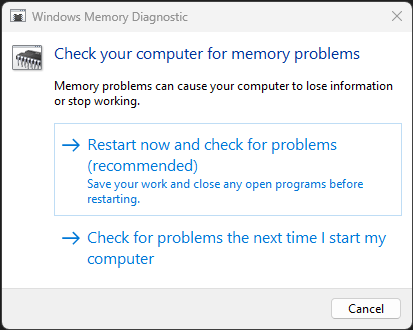
- Open the Tool:
- Press the
Windowskey, type Windows Memory Diagnostic, and press Enter.
- Press the
- Choose Your Option:
- You can either select “Restart now and check for problems” or schedule the scan for the next time you restart your computer.
- Review the Results:
- After the test completes, Windows will display the results. If errors are found, you may need to replace your RAM.
B. Using Third-Party Tools
For a more thorough test, consider using tools like MemTest86:
- Download and Create a Bootable Drive:
- Download MemTest86 from the official website.
- Follow the instructions to create a bootable USB drive.
- Run the Test:
- Boot from the USB drive and let MemTest86 run for several passes. Note any errors it reports.
- Interpreting Results:
- Errors in multiple passes indicate potential issues with your RAM modules, and you might need to replace them.
4. Additional Steps and Considerations
- Check for Software Conflicts: Sometimes, security software or other system utilities can cause conflicts. Temporarily disable these programs to see if the issue persists.
- Review Event Viewer Logs: The Windows Event Viewer can provide detailed logs that may pinpoint the source of the blue screen.
- Open Event Viewer and look under Windows Logs > System for critical errors around the time of the crash.
- Perform a System Restore: If the problem started recently, using System Restore to revert your system back to a previous state can help.
- Seek Professional Help: If troubleshooting steps do not resolve the issue, consider consulting a professional technician.
5. Conclusion
Blue screens can be alarming, but with a systematic approach, you can often identify and resolve the underlying issues. By gathering key information, updating drivers, checking system files, and running a memory scan, you can narrow down the potential causes of system instability. Remember that if your troubleshooting steps do not yield a solution, professional help might be necessary to prevent further issues.
Keep your system updated, monitor hardware health regularly, and back up important data to minimize the risk of future disruptions.