Computer or Internet Issues
Common Computer and Networking Issues
- I can't connect to internet or webpage isn't loading?
- Websites loading extremely slow?
- How do I find my computer name?
- Incorrect Charger
- How to Troubleshoot Blue Screens
- Website not working right?⚡ Targeted Clear Site Data via DevTools (Right-Click Method)
I can't connect to internet or webpage isn't loading?
There is many reasons why this can happen, let go over a few things to check. If at any point you don't feel comfortable doing these steps or would like assistance, feel free to give us a call 1 (855) 994-2900 or Email support@precision-computer.com
1. Is this only an issue on one device or multiple.
a. If all computers don't have internet (try multiple different websites), then try restarting your modem or whole network.
b. If just your computer, you may try restarting your computer to see if it clear it up.
I. If still an issue, try to figure out if your connected to the internet and how... Wired or Wireless (WIFI)

In bottom corner of your screen you can see the icon computer with cable of Wifi, make sure you are connected and on the correct network.
2. Is it just a single program or website, or is it all websites you try, (try at least 3 different websites)
a. If just single website, it could mean that site is down, you may give it time or try to reach out to find out what's going out (if its something that is on your own company server, you may reach out to support right away).
b. if its multiple different websites, reach out to support to see what may be causing it.
c. If its all websites, anything you try, then try restarting your internet modem or even your whole network.
If there is any ongoing issues, seems that you constantly have the same issue more than once every month, reach out to support, to see if there is something causing it.
Websites loading extremely slow?
There is many reasons why this can happen, let go over a few things to check. If at any point you don't feel comfortable doing these steps or would like assistance, feel free to give us a call 1 (855) 994-2900 or Email support@precision-computer.com
1. Is this only an issue on one device or multiple.
a. If all computers seem to be running very slow (try multiple different websites), then try restarting your modem or whole network.
b. If just your computer, you may try restarting your computer to see if it clear it up.
2. Is it just a single program or website, or is it all websites you try, (try at least 3 different websites)
a. If just single website, it could mean that site is having issues, or an old government website :), you may give it time or try to reach out to find out what's going out (if its something that is on your own company server, you may reach out to support right away).
b. if its multiple different websites, reach out to support to see what may be causing it, you may try restarting the whole network to see if it clears up first.
If there is any ongoing issues, seems that you constantly have the same issue more than once every month, reach out to support, to see if there is something causing it.
How do I find my computer name?
Some times you need to identify which computer you are at, or need help with, and possibly there is no label on the computer or somethings got swapped around and your not sure...
Easiest way to find out, is when your computer is booted, check "System Information"
System Information
- Press the Start Icon

- Start typing "System Information" (likely it will popup after you type in the first several letters)

- Look for "System Name" and that should be your computer name

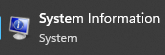
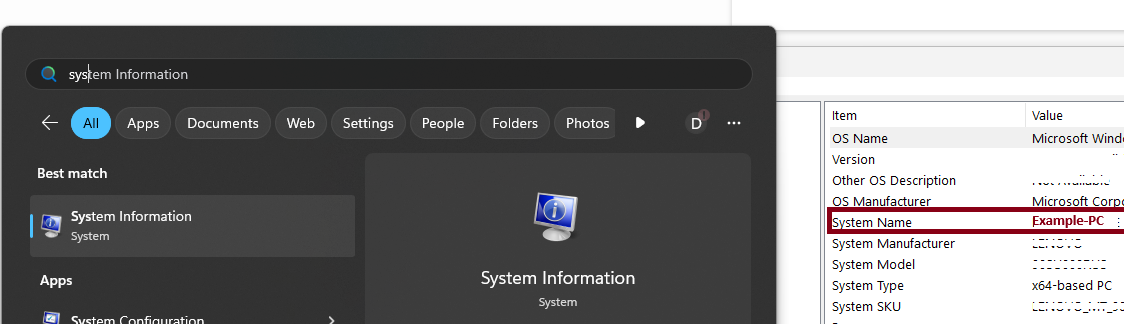
Now, System Name may not be Unique enough, you may provide "System SKU", or simply take photo of the window and text it to our support number - 660-827-1500 for additional help.
Incorrect Charger
Incorrect Charger may be a Fire Hazard, as some safety mechanisms can fail/malfunction when its trying to regulate a large difference in power being sent.
While using incorrect charger may work, it may lead to shorter lifespan of the Computer/Battery, and may cause permanent damage to individual components, as well as unexplained erratic behavior of the computer, such as random errors or freezing or other issues that are hard to determine or diagnose. And the longer use of an Incorrect Power Adapter, will only compound the problem, meaning it will continue to get worse with time. Don't be surprised if your 2 year old laptop starts having major issues and doesn't make it to 4+ years if you use an incorrect charger.
Remember, Electricity is what computers run and live on, giving too much or not enough, will heavily affect it. While there is much in a computer to help level it and regulate it, using the wrong adapter may not cause much issue if just used for few hours or few days, continued use is similar to like our bodies, will have a toll over time.
How can I tell if I have the right charger or not?
I have an HP Laptop and I have a HP Charger.... so it would work right? No, unfortunately there can be easily 20 different chargers just for same Brand and Series, not to mention thousands of different chargers out there in the wild.
There are few important things to look at when checking a charger,
- Voltage
- Amperage
- Does it fit correctly
1. First, Look on back of your Laptop
Usually located on the back of the computer (If has a removable battery, it may be located under the battery), it should always have 2 sets very important numbers, usually first set would be 00.0V (Many laptops are usually 19.5V), which indicates the Voltage and 0.00A (Which varies quite a bit on many computers, on average from 2.33A to 9.23A) which is the Amperage.
Here is an example of a Laptop Label:
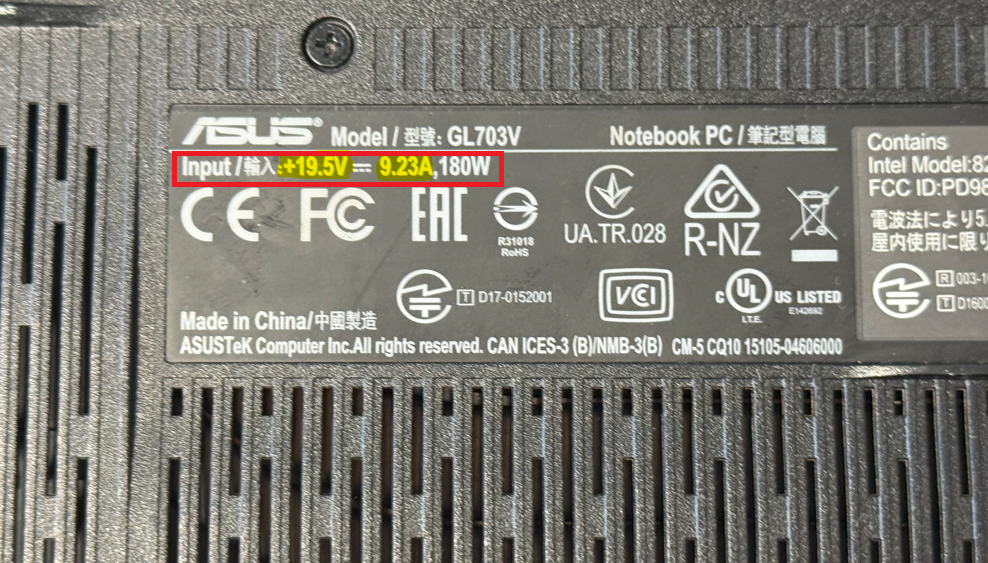
This has a easy to find, Input power requirements of 19.5V and 9.23A which equals 180W (Watt)
*The Watts are usually labeled in a bigger format to help you find your charger more easily, however the Voltage and Amperage need to be double checked.
Some computers however may allow more than 1 set of Voltages and Amperages, like this one:
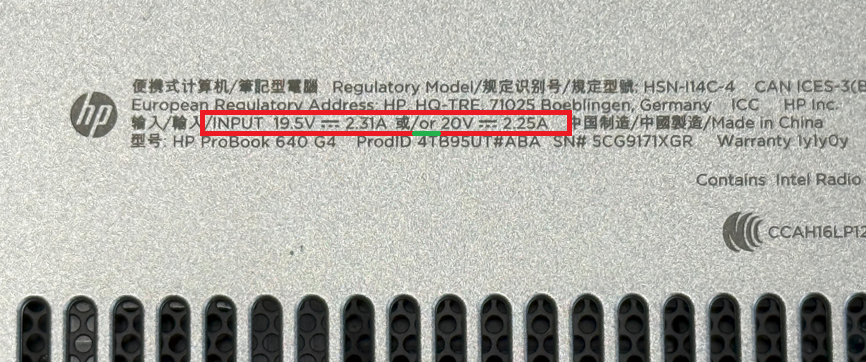
This computer states the Input to be 19.5V 2.31A OR 20V 2.25A, Which means that you can use a charger that puts out 19.5V and 2.31A OR 20v and 2.25A, it has to have the Volts and Amps stay together as a set.
2. Look at the Charger Output
While the laptop take in and we look at the input the laptop needs, the charger will give power out of the connector end (the part that connects into the laptop) and we need to check the Output on the charger
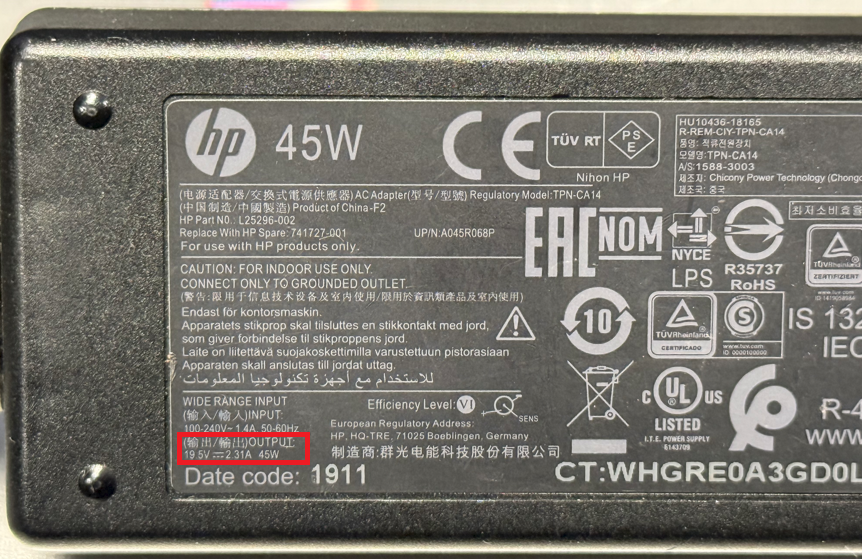
So the output on this Charger is 19.5V and 2.31A and matches the above HP Laptop's Input of 19.5V and 2.31A
3. Does it Fit?
Usually most people get this part right, if it fits then its correct... not exactly, but if it the Voltage and Amperage is correct, and it fits, then YES!
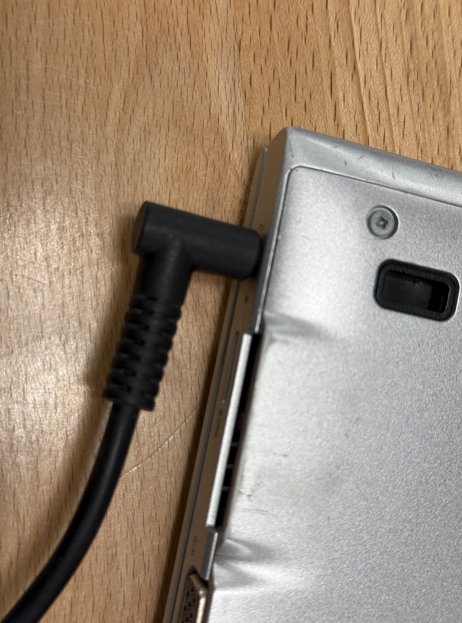
If it slides right in and doesn't wiggle around or feel loose, or you don't have to apply a decent amount of force, but it naturally slides in. Then its a safe bet that the connector is correct!
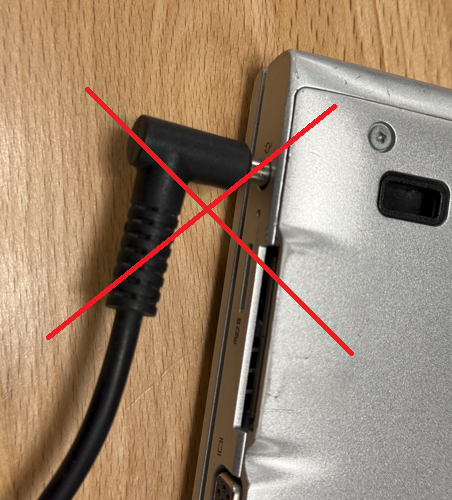
However if it does feel very loose and seems to slide out or wiggle around way to much... it could be a couple of things...
- Its incorrect charger, remember all 3 things must match (Voltage, Amperage, and Connector Fits)
- or You have the correct charger but the port has already been damaged and needs to be repaired.
If your unsure...
Feel free to contact support, you may take photos like the ones above and email it to support@precision-computer.com or even text it to one of our local offices, which you may lookup or ask support for the number, You may already have a label with phone number on your computer.
How to Troubleshoot Blue Screens
Blue screens—commonly known as the Blue Screen of Death (BSOD)—can be frustrating and disruptive. They often indicate a critical system error, which may be caused by hardware malfunctions, faulty drivers, or system file issues. This article provides a step-by-step guide to help you troubleshoot blue screens and run a memory scan to identify potential issues.
1. Understanding Blue Screens
What Are Blue Screens?
Blue screens occur when Windows encounters a fatal error that it cannot safely recover from. The screen typically displays an error code and sometimes a brief description of the issue. This information can be crucial in diagnosing the problem.
Common Causes Include:
- Faulty or outdated drivers
- Hardware malfunctions (e.g., bad memory or overheating components)
- Corrupt system files
- Software conflicts or recent changes to the system
2. Troubleshooting Blue Screens
A. Gather Key Information
- Note the Error Code: When the blue screen appears, jot down the error code and any accompanying messages. This code (e.g.,
0x0000007E,IRQL_NOT_LESS_OR_EQUAL) provides clues for further research. Logs are also stored on your computer for several days and can be found in C:\Windows\Minidump (But are usually limited to Admins or your IT) - Check Recent Changes: Consider any recent software installations, driver updates, or hardware modifications that might have triggered the issue.
B. Boot into Safe Mode
Safe Mode loads Windows with minimal drivers and services, allowing you to troubleshoot without interference from third-party software.
- How to Boot into Safe Mode:
- Restart your computer.
- Press
F8(or follow your manufacturer’s instructions) before Windows loads. - Choose “Safe Mode” from the boot options menu.
C. Update or Roll Back Drivers
- Update Drivers: Visit the manufacturer’s website for your hardware components and download the latest drivers.
- Roll Back Recent Updates: If the issue started after a driver update, roll back to the previous version:
- Open Device Manager.
- Locate the device, right-click it, and select Properties.
- Go to the Driver tab and click Roll Back Driver if available.
D. Check System Files
- Run System File Checker (SFC):
- Open the Command Prompt as an administrator.
- Type
sfc /scannowand press Enter.
- Run DISM Tool (if needed):
- In the Command Prompt, type
DISM /Online /Cleanup-Image /RestoreHealthand press Enter.
- In the Command Prompt, type
These commands will scan for and attempt to repair corrupted system files.
E. Monitor Hardware Health
- Overheating: Ensure that your system is free of dust and that cooling components (fans, heat sinks) are functioning properly.
- Loose Components: Check that hardware components, such as RAM and graphics cards, are securely seated.
3. Running a Memory Scan
Faulty memory (RAM) is a common culprit behind blue screens. Running a memory diagnostic test can help identify if your RAM is causing system instability.
A. Using Windows Memory Diagnostic
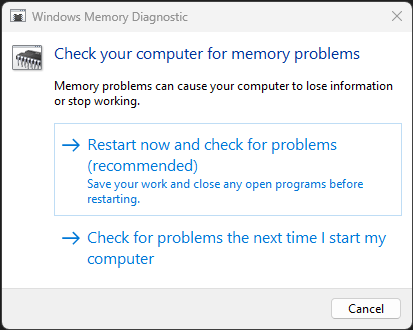
- Open the Tool:
- Press the
Windowskey, type Windows Memory Diagnostic, and press Enter.
- Press the
- Choose Your Option:
- You can either select “Restart now and check for problems” or schedule the scan for the next time you restart your computer.
- Review the Results:
- After the test completes, Windows will display the results. If errors are found, you may need to replace your RAM.
B. Using Third-Party Tools
For a more thorough test, consider using tools like MemTest86:
- Download and Create a Bootable Drive:
- Download MemTest86 from the official website.
- Follow the instructions to create a bootable USB drive.
- Run the Test:
- Boot from the USB drive and let MemTest86 run for several passes. Note any errors it reports.
- Interpreting Results:
- Errors in multiple passes indicate potential issues with your RAM modules, and you might need to replace them.
4. Additional Steps and Considerations
- Check for Software Conflicts: Sometimes, security software or other system utilities can cause conflicts. Temporarily disable these programs to see if the issue persists.
- Review Event Viewer Logs: The Windows Event Viewer can provide detailed logs that may pinpoint the source of the blue screen.
- Open Event Viewer and look under Windows Logs > System for critical errors around the time of the crash.
- Perform a System Restore: If the problem started recently, using System Restore to revert your system back to a previous state can help.
- Seek Professional Help: If troubleshooting steps do not resolve the issue, consider consulting a professional technician.
5. Conclusion
Blue screens can be alarming, but with a systematic approach, you can often identify and resolve the underlying issues. By gathering key information, updating drivers, checking system files, and running a memory scan, you can narrow down the potential causes of system instability. Remember that if your troubleshooting steps do not yield a solution, professional help might be necessary to prevent further issues.
Keep your system updated, monitor hardware health regularly, and back up important data to minimize the risk of future disruptions.
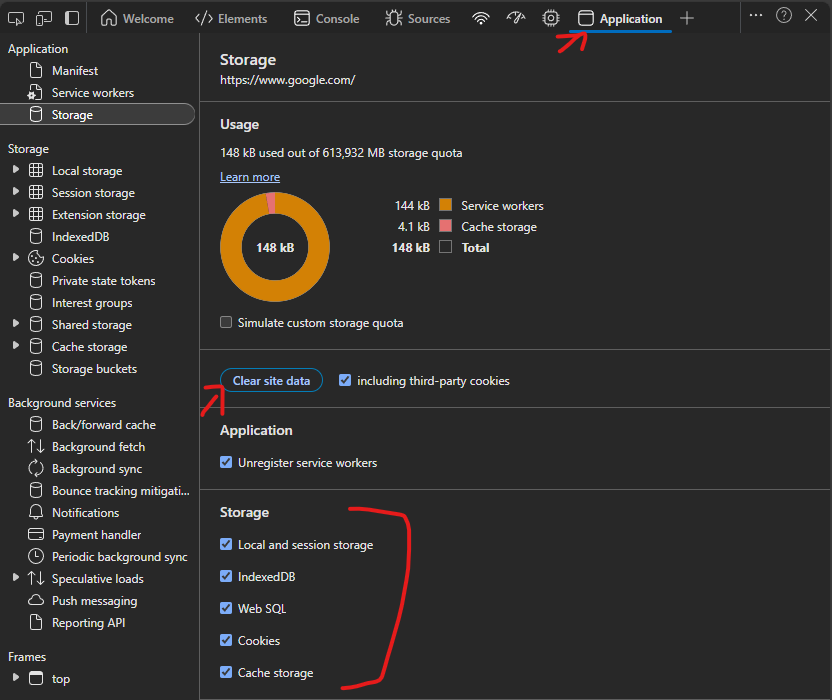
Website not working right?⚡ Targeted Clear Site Data via DevTools (Right-Click Method)
Website not loading correctly? You may need to clear saved site data on your computer, you probably heard some say just clear your cookies, well here is how to do targeted site data clearing without affect ALL the websites and having to relogging in to every site again.
Steps (Works in Chrome and Edge):
-
Right-click anywhere on the web page.
-
Select "Inspect" to open DevTools.
-
In DevTools, click the "Application" tab at the top.
If you don’t see it, click the double arrows
>>to find it in the overflow menu. -
On the left sidebar, under “Storage”, click “Clear storage”.
-
In the right panel:
-
Make sure the checkboxes for Local Storage, Cookies, IndexedDB, Cache Storage, etc. are selected.
-
-
Click the blue “Clear site data” button at the bottom.
🎯 This immediately removes all site-specific data (like local storage, cookies, and caches) without affecting other sites.
🧠 What Is Site Data & Cookies (in Simple Terms)?
When you visit a website, it remembers things about you to make your experience better and faster next time. This information is called "site data", and it includes things like:
It’s like when a coffee shop remembers your name and usual order to save time. That’s great — until they get it wrong or save old info.
🧹 Why You Might Need to Clear Site Data & Cookies
Sometimes these saved bits of information go bad, such as:
-
The website isn’t loading right
-
You're seeing old content
-
You're stuck logged out or in a weird loop
-
A form keeps giving errors
-
You switched accounts or settings and it's acting up
Clearing site data is like saying:
"Forget what you know about me and let's start fresh."
You’re not breaking anything — you’re just resetting your experience with that website.
✅ When Should You Do It?
-
A website is acting weird or broken
-
You’re switching users or logging into a different account
-
You’re troubleshooting issues (as instructed by tech support)
-
You want to remove tracking or stored preferences