# Time Frames

Time frames allow you to control the scheduling of the system. You configure time frames   
using the Time Frames page. To display this page, click the Time Frames icon at the top of   
the page:
![](https://docs.precision-computer.com/uploads/images/gallery/2024-07/AEXHBIf9FWcmXANI-embedded-image-uc38tskv.png)  
Three common time frames are:  
• Open Hours (for example, M-F 9am-5pm)  
• Holidays (Independence Day, Thanksgiving, New Year’s, and so on)  
• Closed Hours (all other times)

  
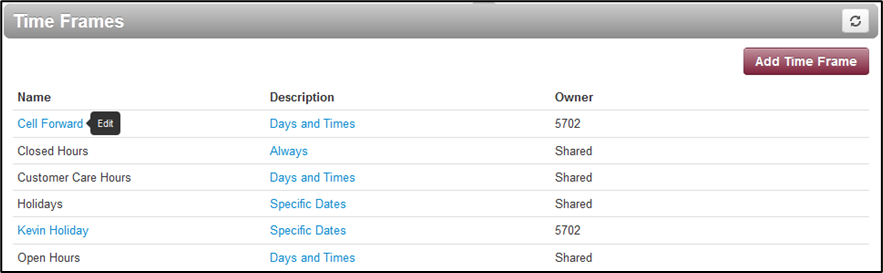
Time frames can be both shared (system-wide and set by the administrator) or personal to   
your extension. You can add a time frame to your extension by clicking the **Add Time Frame**.
![](https://docs.precision-computer.com/uploads/images/gallery/2024-07/X1Dbe9beviK29CAe-embedded-image-ofuq6pya.png)

<span lang="EN-US" style="font-size: 8.0pt; mso-bidi-font-size: 12.0pt; font-family: Wingdings; mso-fareast-font-family: Wingdings; mso-bidi-font-family: Wingdings; color: #094c72; font-weight: normal;"><span style="mso-list: Ignore;">Ø<span style="font: 7.0pt 'Times New Roman';"> </span></span></span><span lang="EN-US" style="color: #4a4a54;">To add time frames</span>

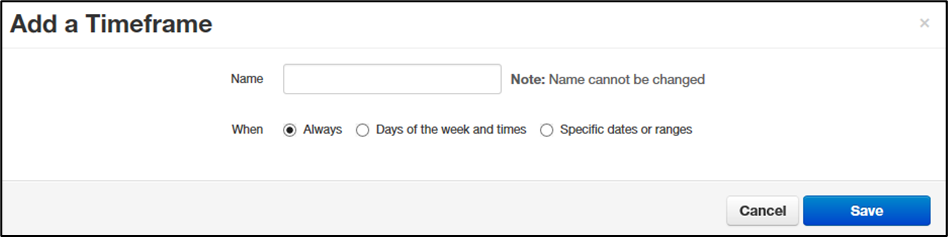
<span lang="EN-US" style="mso-fareast-font-family: Arial; color: #4a4a54;"><span style="mso-list: Ignore;">1.<span style="font: 7.0pt 'Times New Roman';"> </span></span></span><span lang="EN-US" style="color: #4a4a54;">From the Time Frames page, click **Add Time Frame**. </span>

<span lang="EN-US" style="color: #4a4a54;">The Add a Timeframe page appears.</span>

![](https://docs.precision-computer.com/uploads/images/gallery/2024-07/vWgrBuhG2lbohPIR-embedded-image-dwmibv5i.png)

<span lang="EN-US" style="mso-fareast-font-family: Arial; color: #4a4a54;"><span style="mso-list: Ignore;">2.<span style="font: 7.0pt 'Times New Roman';"> </span></span></span><span lang="EN-US" style="color: #4a4a54;">In the **Name** field, enter a name for this time frame.</span>

<span lang="EN-US" style="mso-fareast-font-family: Arial; color: #4a4a54;"><span style="mso-list: Ignore;">3.<span style="font: 7.0pt 'Times New Roman';"> </span></span></span><span lang="EN-US" style="color: #4a4a54;">Next to **When**, select the time period when the time frame will be applied:</span>

<span lang="EN-US" style="mso-fareast-font-family: Arial; color: #4a4a54;"><span style="mso-list: Ignore;">–<span style="font: 7.0pt 'Times New Roman';"> </span></span></span>**<span lang="EN-US" style="color: #4a4a54;">Always</span>**<span lang="EN-US" style="color: #4a4a54;"> = select this option if the time frame will always be applied. Click **Save** to complete the procedure.</span>

<span lang="EN-US" style="mso-fareast-font-family: Arial; color: #4a4a54;"><span style="mso-list: Ignore;">–<span style="font: 7.0pt 'Times New Roman';"> </span></span></span>**<span lang="EN-US" style="color: #4a4a54;">Days of the week and times</span>**<span lang="EN-US" style="color: #4a4a54;"> = select this option to select days and times when the time frame will be applied. Proceed to “</span><span lang="EN-US" style="color: #4a4a54;">If you select Days of the week and times</span><span lang="EN-US" style="color: #4a4a54;">” on page </span><span lang="EN-US" style="color: #4a4a54;"><span style="mso-no-proof: yes;">23</span></span><span lang="EN-US" style="color: #4a4a54;">.</span>

<span lang="EN-US" style="mso-fareast-font-family: Arial; color: #4a4a54;"><span style="mso-list: Ignore;">–<span style="font: 7.0pt 'Times New Roman';"> </span></span></span>**<span lang="EN-US" style="color: #4a4a54;">Specific dates or ranges</span>**<span lang="EN-US" style="color: #4a4a54;"> = select this option to specify a specific date or range of dates. Proceed to “</span><span lang="EN-US" style="color: #4a4a54;">If you select Specific dates or ranges</span><span lang="EN-US" style="color: #4a4a54;">” on page </span><span lang="EN-US" style="color: #4a4a54;"><span style="mso-no-proof: yes;">27</span></span><span lang="EN-US" style="color: #4a4a54;">.</span>

<span lang="EN-US" style="color: #4a4a54;">**If you select Days of the week and times**  
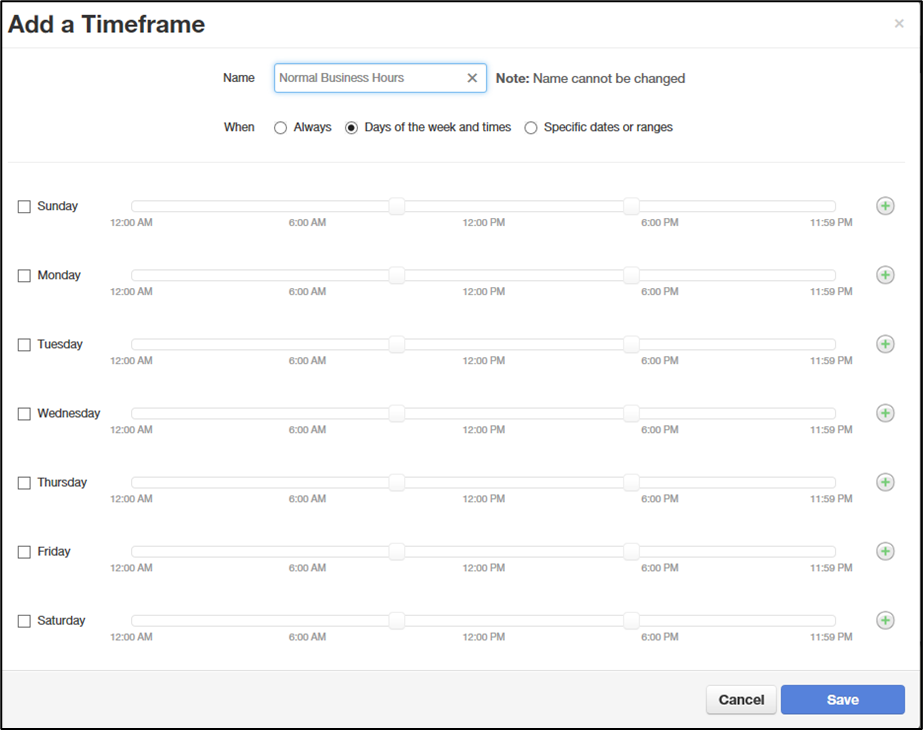
Options appear for selecting days and times when the time frame will be applied.  
</span>

<span lang="EN-US" style="color: #4a4a54;">![](https://docs.precision-computer.com/uploads/images/gallery/2024-07/3pLRCjdjMfmyTk5D-embedded-image-a6cwmne7.png)</span>

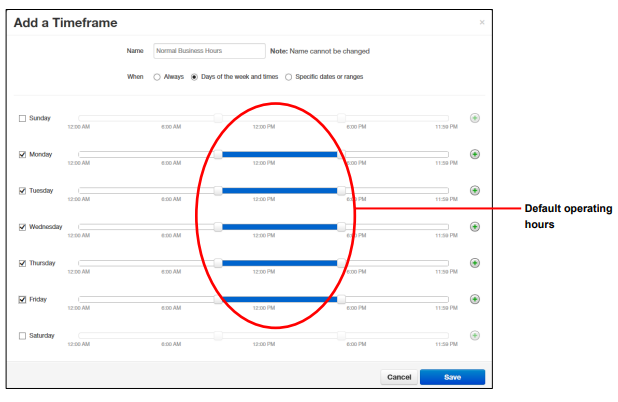
<span lang="EN-US" style="mso-fareast-font-family: Arial; color: #4a4a54;"><span style="mso-list: Ignore;">1.<span style="font: 7.0pt 'Times New Roman';"> </span></span></span><span lang="EN-US" style="color: #4a4a54;">Using the check boxes next to the name of each day of the week, check the days when the time frame will be applied. A blue line to the right of checked day shows the default hours for this time frame (9:00 AM through 5:00 PM).</span>

![image.png](https://docs.precision-computer.com/uploads/images/gallery/2024-07/scaled-1680-/NxzPEqyotbLVBivu-image.png)

<span lang="EN-US" style="mso-fareast-font-family: Arial; color: #4a4a54;"><span style="mso-list: Ignore;">2.<span style="font: 7.0pt 'Times New Roman';"> </span></span></span><span lang="EN-US" style="color: #4a4a54;">To change the start time, drag the button on the left side of the blue bar either to the left to begin the start time earlier or to the right to begin the start time later. </span>

<span lang="EN-US" style="color: #4a4a54; mso-no-proof: yes;"> </span>

<span lang="EN-US" style="color: #4a4a54;"> </span>![](https://docs.precision-computer.com/uploads/images/gallery/2024-07/z8BeJhBghXWgdyxn-embedded-image-00qqepd7.png)

<span lang="EN-US" style="mso-fareast-font-family: Arial; color: #4a4a54;"><span style="mso-list: Ignore;">3.<span style="font: 7.0pt 'Times New Roman';"> </span></span></span><span lang="EN-US" style="color: #4a4a54;">To change the end time, drag the button on the right side of the blue bar either to the left to shorten the end time or to the right to lengthen the end time. </span>

<span lang="EN-US" style="color: #4a4a54; mso-no-proof: yes;"> </span>

<span lang="EN-US" style="color: #4a4a54;"> </span>![](https://docs.precision-computer.com/uploads/images/gallery/2024-07/4xUZsHlTuypxrpvi-embedded-image-06qcrptf.png)

**<span lang="EN-US" style="color: #4a4a54;">Hint</span>**<span lang="EN-US" style="color: #4a4a54;">: To fine-tune start and end times, click start time or end time button, and then use the left and right arrow keys on your keyboard to change the time in 5-minute increments.</span>

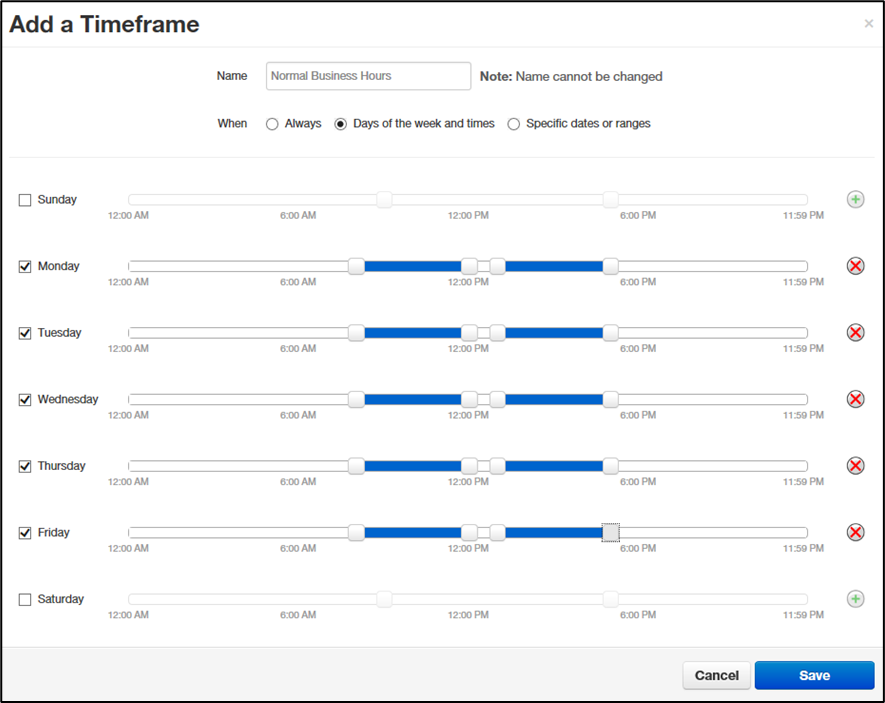
<span lang="EN-US" style="font-size: 11.0pt; mso-bidi-font-size: 12.0pt; font-family: 'Arial',sans-serif; mso-fareast-font-family: 'Times New Roman'; mso-bidi-font-family: 'Times New Roman'; color: #4a4a54; mso-ansi-language: EN-US; mso-fareast-language: EN-US; mso-bidi-language: AR-SA;">4. By default, each day is made up of one time period. However, you can use the <span style="mso-no-proof: yes;"> </span>icon to define two time periods per day. For example, the figure below shows a setup for an office that answers calls in the morning and afternoon, and then transfers calls to an answering service over lunch, on Monday through Friday. By doing this, you would create two time frames (for example, one from 8 to noon and another from 1:00 to 5:00 PM). </span>
<span lang="EN-US" style="font-size: 11.0pt; mso-bidi-font-size: 12.0pt; font-family: 'Arial',sans-serif; mso-fareast-font-family: 'Times New Roman'; mso-bidi-font-family: 'Times New Roman'; color: #4a4a54; mso-ansi-language: EN-US; mso-fareast-language: EN-US; mso-bidi-language: AR-SA;">![](https://docs.precision-computer.com/uploads/images/gallery/2024-07/tDRj6H9KAMbeVRb0-embedded-image-3vhyll2d.png)</span>

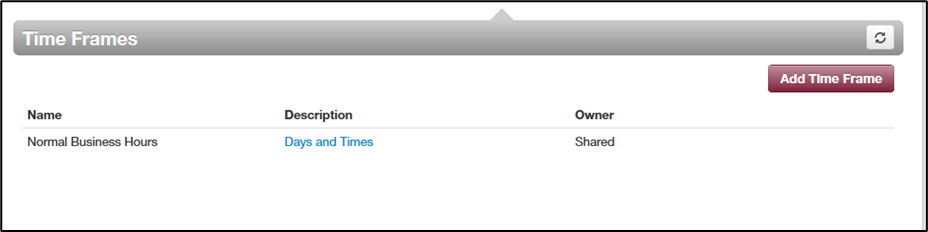
<span lang="EN-US" style="mso-fareast-font-family: Arial; color: #4a4a54;"><span style="mso-list: Ignore;">5.<span style="font: 7.0pt 'Times New Roman';"> </span></span></span><span lang="EN-US" style="color: #4a4a54;">Click **Save** to save your selections. </span>

<span lang="EN-US" style="color: #4a4a54;">The time frame appears as a row on the Time Frames page.</span>

<span lang="EN-US" style="color: #4a4a54;">![](https://docs.precision-computer.com/uploads/images/gallery/2024-07/aqTMBVEFqOhCsXZt-embedded-image-iuco3hhk.png)</span>

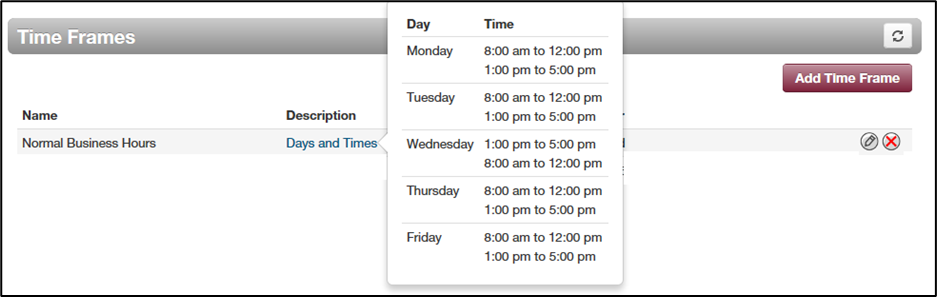
**<span lang="EN-US" style="color: #4a4a54;">Hint</span>**<span lang="EN-US" style="color: #4a4a54;">: Moving the pointer over the blue text in the **Description** column shows the settings for that timeframe.</span>

<span lang="EN-US" style="color: #4a4a54;">![](https://docs.precision-computer.com/uploads/images/gallery/2024-07/RJPHSW7JQmB7Lxck-embedded-image-dkfivqzo.png)</span>

<span lang="EN-US" style="color: #4a4a54;">**If you select Specific dates or ranges**  
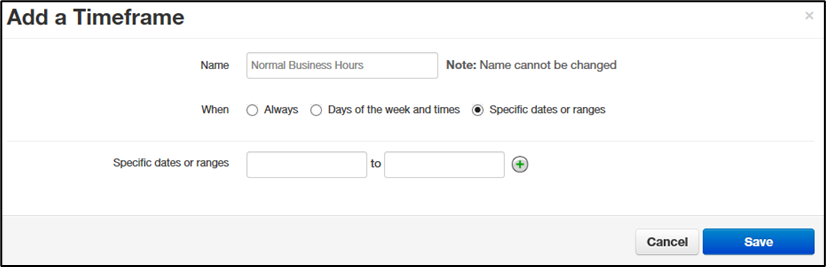
Fields appear for entering dates or ranges  
</span>

<span lang="EN-US" style="color: #4a4a54;">![](https://docs.precision-computer.com/uploads/images/gallery/2024-07/WZpjadVPddu3SiRO-embedded-image-mvwvuqln.png)</span>

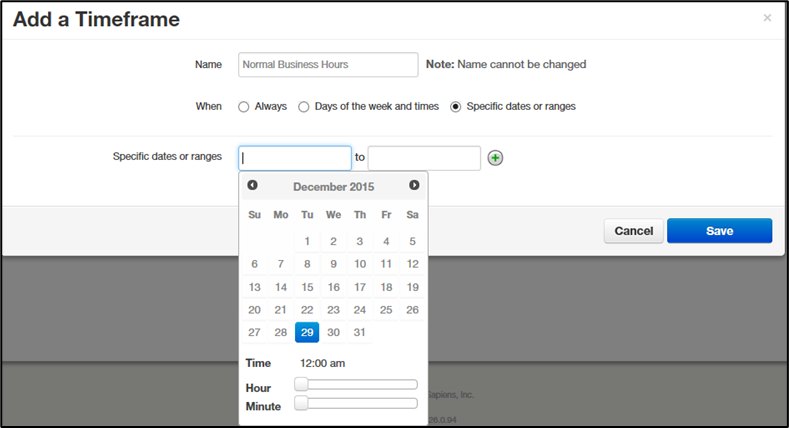
<span lang="EN-US" style="mso-fareast-font-family: Arial; color: #4a4a54;"><span style="mso-list: Ignore;">1.<span style="font: 7.0pt 'Times New Roman';"> </span></span></span><span lang="EN-US" style="color: #4a4a54;">Click in the left field, and then select a starting date and time from the pop-up calendar.</span>

<span lang="EN-US" style="color: #4a4a54; mso-no-proof: yes;"> </span>

<span lang="EN-US" style="color: #4a4a54;"> </span>![](https://docs.precision-computer.com/uploads/images/gallery/2024-07/3U7pKNrPwnnSVyd8-embedded-image-xvrr0qxb.png)

<span lang="EN-US" style="mso-fareast-font-family: Arial; color: #4a4a54;"><span style="mso-list: Ignore;">2.<span style="font: 7.0pt 'Times New Roman';"> </span></span></span><span lang="EN-US" style="color: #4a4a54;">Click in the right field, and then select an ending date and time from the pop-up calendar.</span>

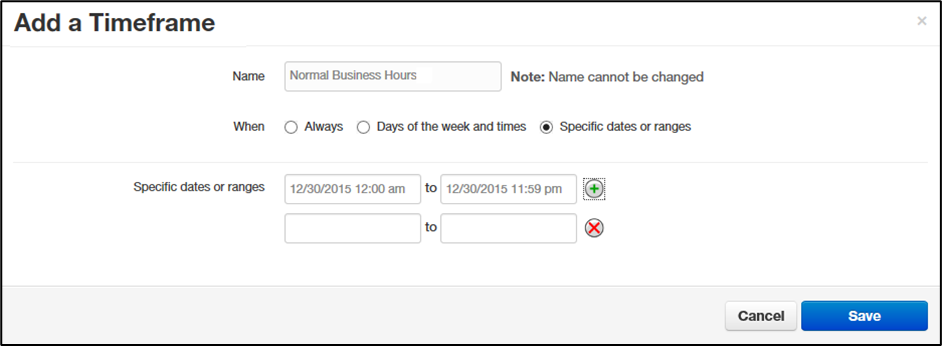
<span lang="EN-US" style="mso-fareast-font-family: Arial; color: #4a4a54;"><span style="mso-list: Ignore;">3.<span style="font: 7.0pt 'Times New Roman';"> </span></span></span><span lang="EN-US" style="color: #4a4a54;">To specify additional ranges, click the <span style="mso-no-proof: yes;"> </span><span style="mso-spacerun: yes;"> </span>icon to display another row of fields, and then repeat steps 1 and 2 in the new fields. Repeat this step for each additional date or range you want to specify. To delete a date or range, click the <span style="mso-no-proof: yes;"> </span><span style="mso-spacerun: yes;"> </span>icon next to the appropriate row.</span>

<span lang="EN-US" style="color: #4a4a54;">![](https://docs.precision-computer.com/uploads/images/gallery/2024-07/YyBoyvFoBimGI0v5-embedded-image-kpdcebga.png)</span>

<span lang="EN-US" style="color: #4a4a54; mso-no-proof: yes;"> </span>

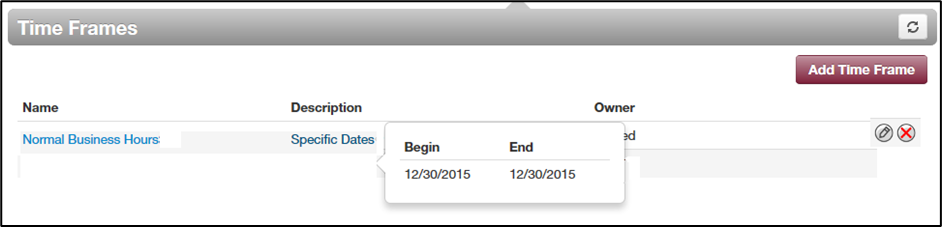
<span lang="EN-US" style="mso-fareast-font-family: Arial; color: #4a4a54;"><span style="mso-list: Ignore;">4.<span style="font: 7.0pt 'Times New Roman';"> </span></span></span><span lang="EN-US" style="color: #4a4a54;">Click **Save** to save your selections. </span>

<span lang="EN-US" style="color: #4a4a54;">The time frame appears as a row on the Time Frames page.</span>

<span lang="EN-US" style="color: #4a4a54; mso-no-proof: yes;"> </span>

<span lang="EN-US" style="color: #4a4a54;"> </span>![](https://docs.precision-computer.com/uploads/images/gallery/2024-07/YyxwTvgLc3EW9GqN-embedded-image-vmxjlajb.png)

**<span lang="EN-US" style="color: #4a4a54;">Hint</span>**<span lang="EN-US" style="color: #4a4a54;">: Moving the pointer over the blue text in the **Description** column shows the settings for that timeframe.</span>

<span lang="EN-US" style="color: #4a4a54; mso-no-proof: yes;"> </span>

<span lang="EN-US" style="color: #4a4a54;"> </span>![](https://docs.precision-computer.com/uploads/images/gallery/2024-07/QD4vRsi5Ujl228bf-embedded-image-eyreeopi.png)