USING YOUR DESK PHONE
While there are many different models of desk
phones, they largely all work the same way. In this
chapter, you will learn how to use common
functions of your phone.
- Making Calls
- Making International Calls
- Extension Dialing
- Intercom
- Receiving Calls
- Voicemail
- Handling Calls
- Rebooting a Grandstream GXP2170
Making Calls
Making a call with your phone does not require a leading 9. You can dial on-hook or offhook.
➢ To dial on-hook
1. Dial the phone number.
2. Pick up the handset, headset, or speaker.
➢ To dial off-hook
1. Pick up the handset, headset, or speaker.
2. Dial the phone number.
Calls to the US and Canada are all dialed using 10 or 11 digits. Local calls can be dialed
using 7 digits.
Making International Calls
➢ To dial an international call
1. Dial the international call code 011.
2. Dial the country code.
3. Dial the local number.
International calling is commonly disallowed to prevent toll fraud.
Extension Dialing
Extensions on your system can be dialed using their 3-to-4 digit extension or by pressing the
button on your phone corresponding to the desired extension.
Intercom
VoIP phones provide an intercom feature that allows you to instantly connect to other
phones within your office. Intercom functionality is ideal for announcing visitors or asking a
quick question.
When one phone intercoms another extension, it does not ring the other phone. Instead, the
other phone will beep, and then its microphone and speaker turn on.
➢ To intercom
1. Dial 99{ext}. For example, to intercom extension 100, dial 99100. Or dial 99 and press the Extension
BLF
On Phones that have BLF (Where you can see if someone's phone is on a call or busy with red light next to their name), you can simply dial 99 then press the button for who you want to intercom with.
Receiving Calls
When a call comes in, you can answer it via a headset, speakerphone, or handset.
➢ To answer a call using a handset
– Lift the handset off-hook.
➢ To answer a call using a speakerphone
– Press the Speaker button.
➢ To answer a call using a headset
– Usage depends on how the headset is connected. Often, you'll press the button on
the headset or press the headset button on the phone.
Voicemail
Accessing Voicemail
➢ To access voicemail
1. Press the Messages button on your phone to access your voicemail box, or dial 5001 if
you can not identify the voicemail button.
2. If you subscribe to multiple mailboxes, a list of mailboxes may appear. Select the mail box
you want to access.
3. When prompted, enter your voicemail pin, and then press #
➢ To access another person’s mailbox
1. Dial 5000.
2. When prompted, enter the other person’s extension number.
3. Enter the voicemail PIN of the other person’s mailbox, followed by #.
Setting Up Your Mailbox
The first time you log in to your mailbox you are walked through recording your name for the
directory and recording your personal greeting.
The name recording is for the dial-by-name directory, so when someone enters the first
three letters of your last name, it will play back your name recording.
The greeting plays when your mailbox is reached. It is very important to make a custom
message, as many callers will not leave messages at mailboxes that have generic greetings.
Alternate Greetings
Your mailbox supports multiple greetings for different scenarios like business trips and
holidays.
➢ To record an alternate greeting
1. From your mailbox, press 6 for greetings, and then press 1 to record an alternate greeting.
2. When prompted for the greeting number press 2 for your next alternate greeting (1 is your
default greeting).
3. After your recording is completed, select the active greeting by selecting option 3 in the
greetings menu.
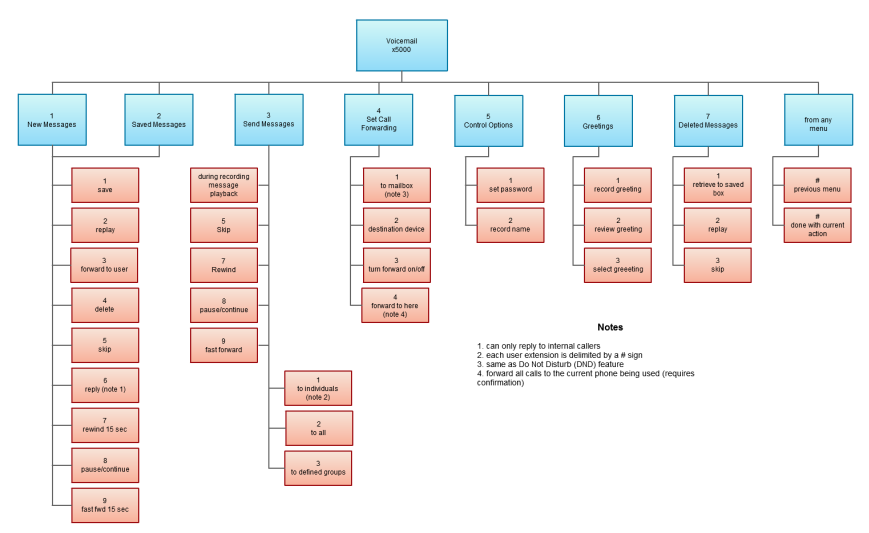
Voicemail Tree
Handling Calls
Your cloud PBX features various ways to move calls around, including attended transfer,
unattended (blind) transfer, voicemail transfer, park, and more. In this section, references to
BLFs are the 1-touch buttons to extensions common at front-desk phones.
Blind Transfer
Blind transfer goes straight to the recipient.
1. Be on the call you want to transfer.
2. Press Transfer.
3. Press the Blind softkey. (if there is no Blind softkey see directions for new firmware)
4. Enter the extension of the recipient or the recipient’s BLF.
Transfers to External Numbers
A transfer can also go to an external number such as a cell phone. Follow the transfer
directions above but instead of dialing an extension, dial a 10 digit phone number.
Voicemail Transfer
Voicemail transfer goes straight to the recipient’s voicemail box without ringing the
recipient’s phone.
➢ To perform a voicemail transfer
– Perform a blind transfer with a 03 prefix before the extension. For extension 111’s
voicemail, for example, blind transfer to 03111.
Park and Hold
On your phone system, hold is a local function. This means a call held on your phone cannot
be picked up at another station. Park is a system-wide function. This means a call parked at
one phone may be picked up by any phone.
➢ To park a call
1. Dial *** in an active call from any phone. The system says, “The call is parked at 7xx.”
2. Hang up.
To retrieve the parked call, dial 7xx where xx is the number stated by the system.
Directed Call Pickup
Directed call pickup (DCP) allows you to answer a call ringing at another station.
➢ To perform a directed call pickup
– Dial *35ext. If 111 is ringing, for example, dial *35111 to pick up that call.
Phones with BLFs to the ringing station can also dial *35 then press the corresponding BLF.
3-Way Conference
➢ To make a 3-way conference
1. Call or be called by the first participant in the conference.
2. Press the Conference key/softkey, and then dial the second participant.
3. After the second participant picks up, press Conference again to connect everyone.
Rebooting a Grandstream GXP2170
This guide shows two easy ways to reboot your GXP2170: from the phone’s menu, or by power-cycling it. Use either method, both do the same thing.
Before you start
-
Finish any active calls. Rebooting will disconnect calls.
-
Rebooting does not erase settings or voicemails. It just restarts the phone.
-
If you use a wired headset or sidecar (EXT), leave them plugged in.
Method A: Reboot from the phone’s menu (preferred)
-
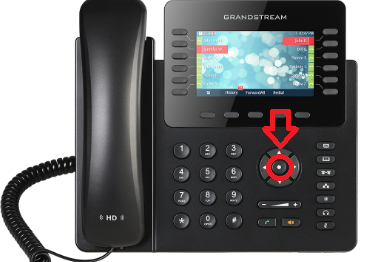
Press the Menu key (the center round button).

-
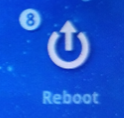
Select Reboot. (you may use arrows or just press the number # 8 on dial pad)

- When Highlighted press the Menu key (the center round button) to select it.
-
When asked to confirm, choose Yes.
-
The screen will go dark and the phone will restart. (it may appear as its not doing anything, but give it about 15 seconds)
Method B: Power-cycle the phone (unplug/replug)
If your phone uses Power over Ethernet (PoE)
-
Trace the network cable from the back of the phone to the wall jack or switch.
-
Unplug that network cable from the back of the phone.
-
Wait 10-15 seconds.
-
Plug the same cable back into the LAN port on the phone (not the PC pass-through port).
If your phone uses a power adapter (wall power)
-
Unplug the round power plug from the back of the phone or unplug the power brick from the wall.
-
Wait 10-15 seconds.
-
Plug it back in firmly to the phone and power outlet.
After the reboot
-
The screen will show the Grandstream logo, then your extension.
-
Line keys will light as the phone finishes registering.
-
You can place/receive calls once the line keys are solid and your name/extension is shown.
If the phone doesn’t come back up
-
Check the network cable is in the LAN port (not “PC”).
-
For power adapter: verify the power brick is firmly connected at both ends and the outlet has power.
-
Look for on-screen messages like “Not Registered”; if you see this, note it for support.
When to contact IT/Support
-
The phone shows “Not Registered” or can’t make/receive calls after reboot.
-
You see repeated reboots or error messages.
-
Your sidecar (EXT) or headset doesn’t power back on.
Provide your extension number, whether you used PoE or power adapter, and what you saw on the screen after the reboot.