Office Manager
Updating Phone Buttons (Speed Dials & BLF)
Introduction
This short guide helps you customize the keys for your desk phone, things like Speed Dials and Busy Lamp Field (BLF) lights, using the self‑service user portal.
What you can do with this guide:
-
Add or change Speed Dial buttons for extensions or external numbers
-
Add BLF keys for user to see coworker status (idle/ringing/on a call) and optionally pick up their ringing calls
-
Reorder keys and manage sidecar/expansion modules
Time required: About 3–5 minutes per phone once you have the portal link and login. If your company locks button editing, you may see read‑only screens, use the request template at the end and IT can apply the changes for you.
Before you start
-
What you’ll need:
-
Your portal URL (e.g.,
https://pbx.precision-computer.com) -
Your username and password (Username will generally be your ext@companyname)
- Office Manager Permissions (Contact Support if needed)
-
-
What these do:
-
Speed Dial: Press to instantly call a number or to transfer a call to that number.
-
BLF: A light that shows a coworker’s line status (idle/ringing/on a call) and lets you pick up or speed dial them or transfer calls to them.
-
Tip: Button names vary slightly by brand (Poly, Yealink, Cisco, Grandstream) and by portal skin. Look for Buttons, Line Keys, Programmable Keys, or Phone Settings.
1. Log in and locate phone
There are 2 main ways you may update a specific device
Option A: Users Tab
-
Open the portal: Go to https://pbx.precision-computer.com and Sign In.
-
Go to Users Tab

- Click on The name or Pencil Icon to select user to edit

- Select Phones tab

- Select Gear Icon next to the phone you would like to edit

Cordless phones usually do not have layouts that can be edited and will not show the gear icon
- Now it will load into Button Builder where you can edit the phone layout


Option B: Inventory Tab
-
Open the portal: Go to https://pbx.precision-computer.com and Sign In.
-
Go to Inventory Tab

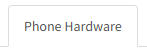
- Select Phone Hardware tab, in Inventory page.

- Select Gear Icon next to the phone you would like to edit

Cordless phones usually do not have layouts that can be edited and will not show the gear icon
- Now it will load into Button Builder where you can edit the phone layout


Part B: Add a Speed Dial button
-
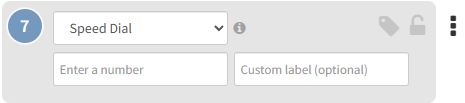
Click on an empty Key slot.
-
Type or select Speed Dial (sometimes called BLF/Speed Dial or Favorite).

-
Number/Value/Target: Enter the extension (e.g.,
203) or full phone number (e.g.,15555551234). - Label: Type the button name you want to see on the phone (e.g., HR, Chris, Support).
-
(Optional) Account/Line: If asked, leave as Line 1 unless you use multiple lines.
-
Click Save (or Apply).
Quick check: If your phone screen shows pages (1/2/3), pick a Page, Row, or Key number if the portal asks for it.
Part C: Add a BLF (Busy Lamp Field) button
-
Click on an empty Key slot.
-
Type/Function: choose BLF or User BLF.
-
Extension/Monitored User/Value: Enter the coworker’s extension (e.g., 203).
-
Label: (Optional) Enter the coworker’s name (e.g., Chris B), if left blank system will use name assigned to extension.
-
Click Save (or Apply).
The light will show: Green = idle, Blinking Red = ringing, Solid Red = on a call, Gray/off = no status or error (exact behavior varies by phone brand).
Part D: Reorder or move buttons
-
Drag and drop by dragging the Key number to place a button in a specific spot.
-
If you have a sidecar/expansion module, be sure you are editing the correct Module (1, 2, …) and Page.
2. Send changes to the phone
-
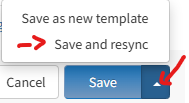
Click Save in the portal first. Or Save and Resync.
-
Push the update to your phone using any one of these (depends on your portal/phone):
-
Save and Resync button, which is visible when clicking arrow next to the Save button.

-
Reboot the phone from the portal.
-
Manual reboot: Unplug power (or network if PoE), wait 5 seconds, plug back in. Or pressing reboot menu option on the phone itself.
-
-
Wait ~1–2 minutes for the phone to pull the new config. The new labels should appear.
Common examples
-
Speed Dial to external number:
-
Type: Speed Dial
-
Label: Help Desk
-
Number:
16608271500
-
-
BLF for coworker at extension 214:
-
Type: BLF (or BLF/Speed Dial)
-
Label: Alicia
-
Extension/Monitored:
214
-
Troubleshooting
Quick Reference (Cheat Sheet)
-
Portal path: Devices/Phones → Buttons/Keys
-
Speed Dial: Label + Number (ext or E.164)
-
BLF: Label + Extension (enable Pickup if desired)
-
Push to phone: Save → Resync/Reboot → Wait ~1–2 min
-
Sidecar: Pick Module + Page before placing keys
Optional: Popular phone brand notes
-
Poly/Polycom: BLF is Busy Lamp Field; pickup often called Directed Pickup. Keys may be under Line Key vs Soft Key tabs.
-
Yealink: Look for DSS Keys; BLF is BLF or BLF List; pages 1–3 map to screen pages and sidecars.
-
Cisco/Grandstream: Similar wording; ensure you’re placing keys on Line Keys (not Soft Keys) for persistent buttons.
Need IT to do it for you? (Template to send)
Please add/modify my phone buttons:
Device: <which extension and phone>
Sidecar: <yes/no & which>
Key 1: BLF – Alicia (214), Pickup enabled
Key 2: Speed Dial – Help Desk (+1 660 827 1500)
Please resync my phone when done. Thanks!
Send to Support@Precision-Computer.com
You’re done! Your new Speed Dial/BLF keys should now appear on the phone. If something looks off, use the Troubleshooting section above or contact IT.
Listening to Call Recordings
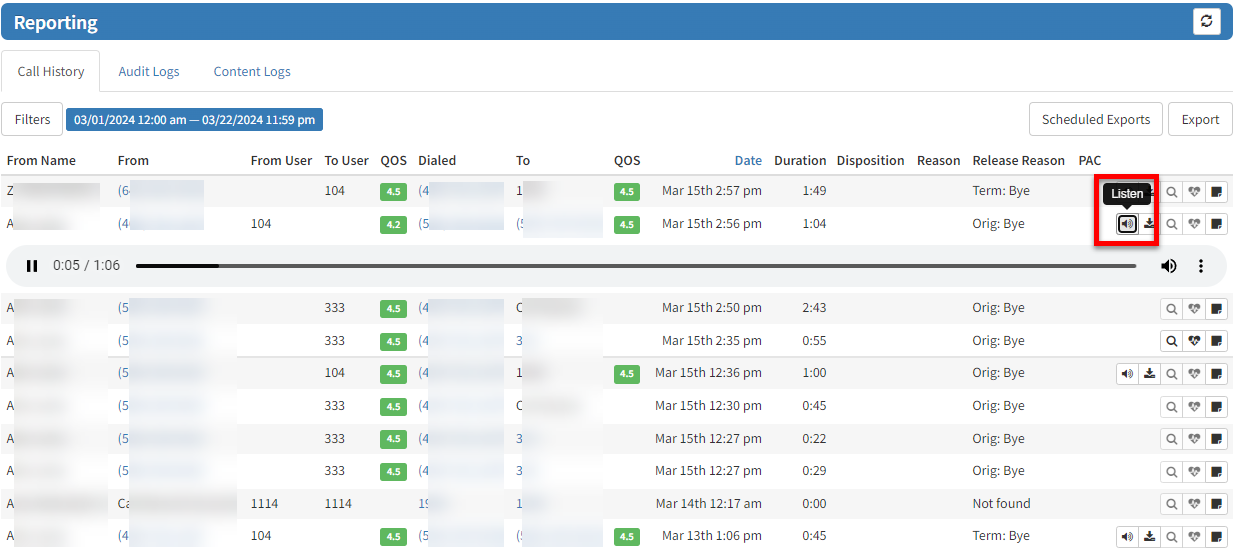
All call recordings will be stored in the user's Call History/Reporting Tab within the User Portal and can be played back on the fly or downloaded. You will need to have Office Manager role to see all the recordings.
1. Login: https://pbx.precision-computer.com as Office Manager
2. Click on Reporting Tab (If you do not see it, then you don't have proper permissions)
3. Just find the call you want to playback and click Listen, see below:
Important Call Recording Conditions
There are 2 ways you can call any user on the system:
- Call their USER which will then follow the answering rules of that user (the default routing is to the user's DEVICE)
- Call the user's DEVICE directly - which will ignore the User's answering rules, and only ring the specific device.
Note: Routing to a User in a Ring Group (a.k.a Hunt Group) or Call Queue goes directly to the User's DEVICE and not to the USER.
Call Recording CONDITIONS depend on HOW the call is routed to the user.
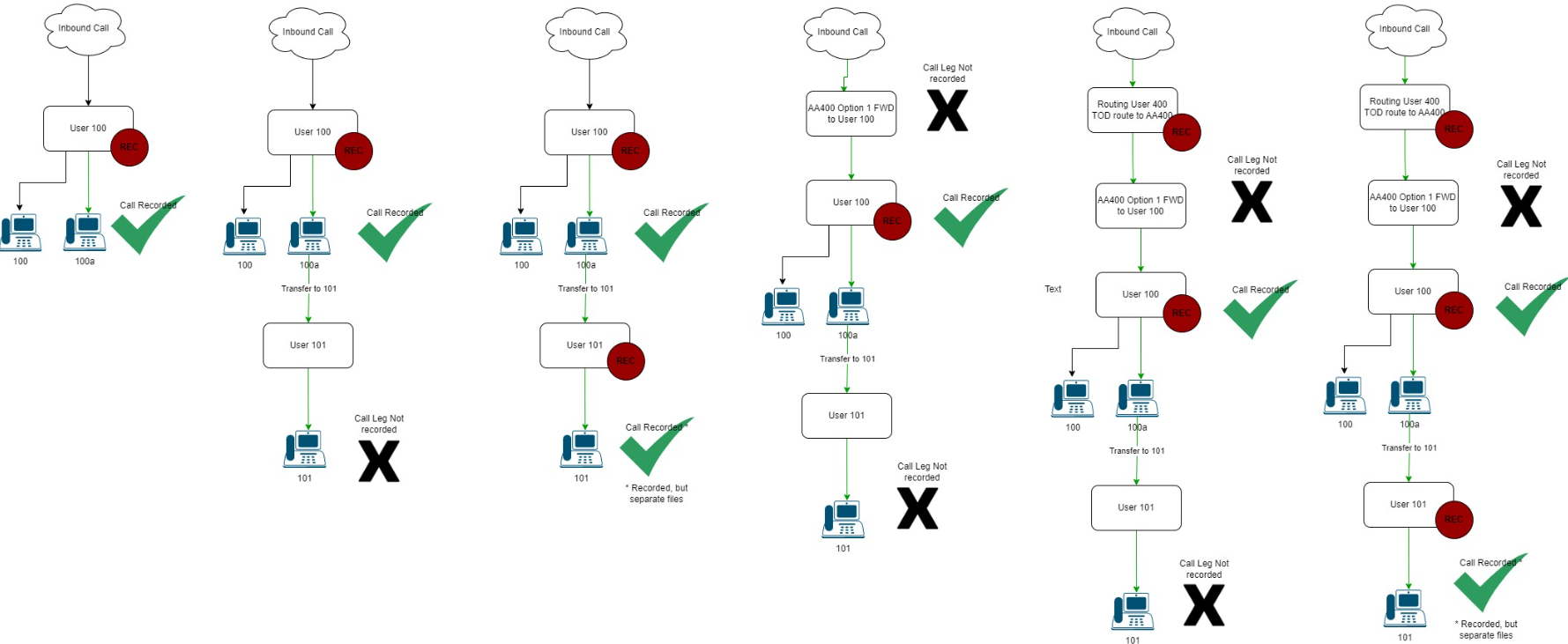
CONDITION 1: Call Recording is activated on the user's USER and DEVICE (this is done in 2 separate screens in the portal), then these conditions will result:
--- Call to DID: Yes
--- Call to Auto Attendant: Yes
--- Call transferred to extension: Yes
--- Call Parked and picked up by another extension: Yes
--- Call into Ring Group: Yes
--- Call into Call Queue: Yes
CONDITION 2: Call Recording is activated on the user's USER and not the DEVICE, then:
--- Call to DID: Yes if the DID is routed to the USER
--- Call to Auto Attendant: Yes if the AA is routed to the USER.
--- Call transferred to extension: Yes
--- Call Parked and picked up by another extension: Yes
--- Call into Ring Group: No
--- Call into Call Queue: No
CONDITION 3: Call Recording is activated on the user's DEVICE and not the USER, then:
--- Call to DID: Yes, but only if the answering rules for USER are routed to the DEVICE.
--- Call to Auto Attendant: Yes, but only if the answering rules for USER are routed to the DEVICE.
--- Call transferred to extension: Yes, but only if the answering rules for USER are routed to the DEVICE.
--- Call Parked and picked up by another extension: Yes, but only if the answering rules for USER are routed to the DEVICE.
--- Call into Ring Group: Yes
--- Call into Call Queue: Yes
If you are missing a recording, you may contact support to request recording. There is a limited window to recover a missing recording.