# Mobile and Desktop Apps
# Download Links
ConnectUC
Android: [https://play.google.com/store/apps/details?id=io.connectuc.android](https://play.google.com/store/apps/details?id=io.connectuc.android)
[](https://docs.precision-computer.com/uploads/images/gallery/2024-10/aUl8fwbWeo904LpJ-image.png)
iOS: [https://apps.apple.com/us/app/connectuc/id6452840138](https://apps.apple.com/us/app/connectuc/id6452840138)
[](https://docs.precision-computer.com/uploads/images/gallery/2024-10/oWj4bLcvkYfqPxI1-image.png)
Desktop: login to [https://app.connectuc.io/](https://app.connectuc.io/) and allow popup to setup browser app
# Setup ConnectUC Mobile App
### Download App
[](https://docs.precision-computer.com/uploads/images/gallery/2025-02/KjVXH1qUAqr58BDA-image.png)
You may Use the following Links:
Android: [https://play.google.com/store/apps/details?id=io.connectuc.android](https://play.google.com/store/apps/details?id=io.connectuc.android)
iOS: [https://apps.apple.com/us/app/connectuc/id6452840138](https://apps.apple.com/us/app/connectuc/id6452840138)
Or Simply Visit your Mobile AppStore or PlayStore and search "ConnectUC"
[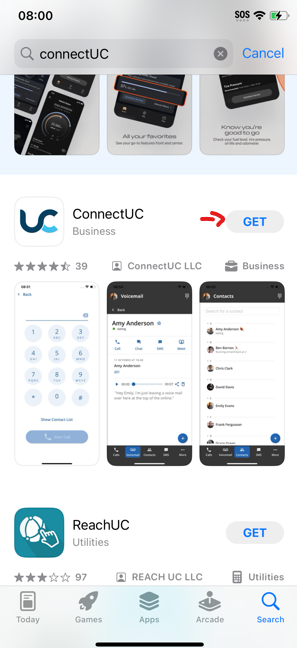](https://docs.precision-computer.com/uploads/images/gallery/2025-02/UFCTYP6omtffzw7Z-image.png)
### Setting up App:
1. Open the App [](https://docs.precision-computer.com/uploads/images/gallery/2025-02/C6EgpIgGfrKInD4P-image.png)
2. Login using your PBX Credentials
***\*Usually you will get welcome email when your office phone is setup and will contain your user name and link to setup the password.
\*\*Generally the username is your ext# then @ and name (Does not have a .com, .net, or anything at the end and not an email address) for Example: 101@BusinessInitalsORname*** [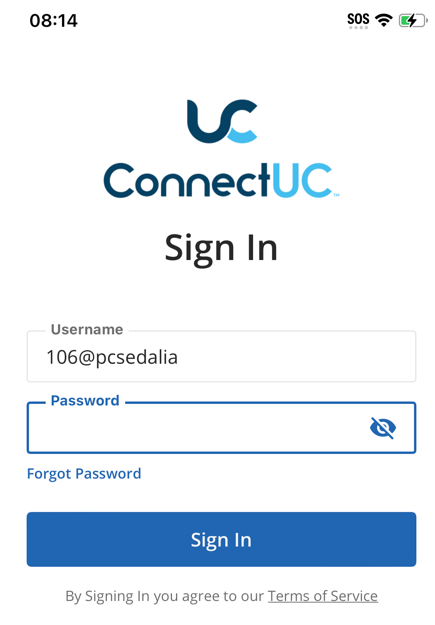](https://docs.precision-computer.com/uploads/images/gallery/2025-02/QRHWaZ52ehTE2io5-image.png)
***\*You may request from Support to send you a new welcome email to reset your password and get your username.***
3. Upon First Login, you will be asked for Permissions,
- [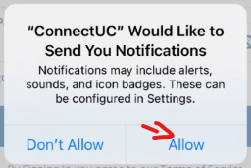](https://docs.precision-computer.com/uploads/images/gallery/2025-02/ivZqLuUp3EUYhBYT-image.png)
Notifications are needed if you want your phone to ring for calls or get notifications for messages and voicemails.
- [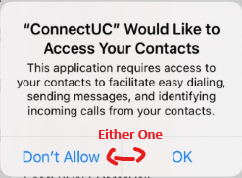](https://docs.precision-computer.com/uploads/images/gallery/2025-02/e05CmtWUn28UrQlb-image.png)
Your Preference: This will only help you to call easier by selecting contacts, none of your phone contacts should be uploading to cloud/server, it should all be only locally to your phone.
- [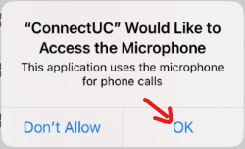](https://docs.precision-computer.com/uploads/images/gallery/2025-02/KuFj1bUwWKTeRVjg-image.png)
Required: if you want the other caller to hear you, without Microphone access, you will hear them, but they won't hear you.
4. That's it, your logged in and ready to use the app. Keep in mind that by default you will only get calls on your mobile phone that are directly dialing your extension. If you want to get calls from normal Call Queue, then contact support to add your mobile device to get the Call Queue Calls as well
### Troubleshooting:
Common Issues and Basic Troubleshooting steps to fix them.
#### I'm Not seeing any calls come through:
There are several reasons you may not see the calls coming in on your phone...
- Logged out of the App
- Forgot to re-setup app on your new smartphone
- Do Not Disturb Enabled on your Smartphone (or Focus Mode for Work, Personal, Sleep, etc)
- Calls are just not setup to be routed to your smartphone app
- You have Do Not Disturb on your Extension Enabled
- Issue/Glitches with Smartphone
Here is what you want to check in this order:
1. Open ConnectUC App on your smartphone and make sure you can make an outbound call.
- If your opening the app and its logged out, or cant find the app, then make sure to download it and/or login
2. Call your extension directly from another office phone, to see if you get a call
- If call goes through, then you may just not have the calls your wanting to route to your mobile phone. Not all calls are treated the same as your office phone, so calls to your mobile and office can be different. *(Contact support if you want to change it or have questions)*
3. Inside ConnectUC App, Click on your Initials/Profile Avatar or Picture in top Left side. And see that Do Not Disturb is turned off [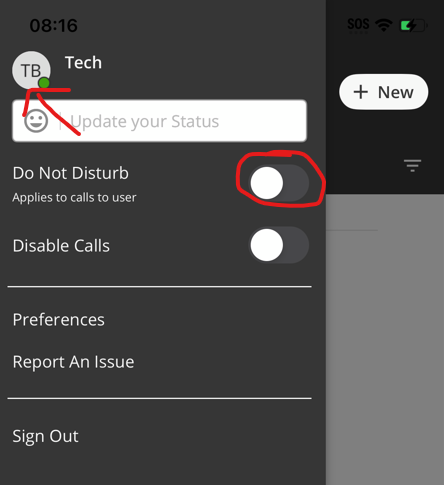](https://docs.precision-computer.com/uploads/images/gallery/2025-02/xH1rUWBzbdgSgKUh-image.png)
4. Go to your Settings -> ConnectUC, and check that Notifications are enabled
\*Newer iOS could be under, Settings -> Apps -> ConnectUC [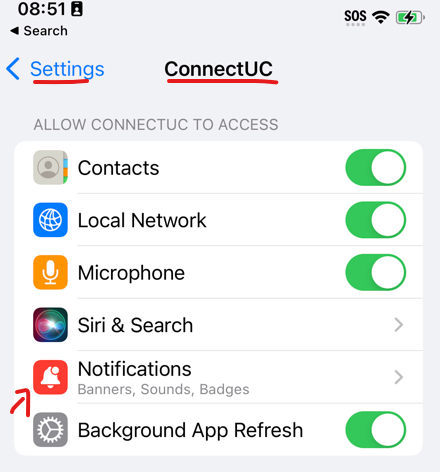](https://docs.precision-computer.com/uploads/images/gallery/2025-02/OfxKmbRfxtOhqYBp-image.png)
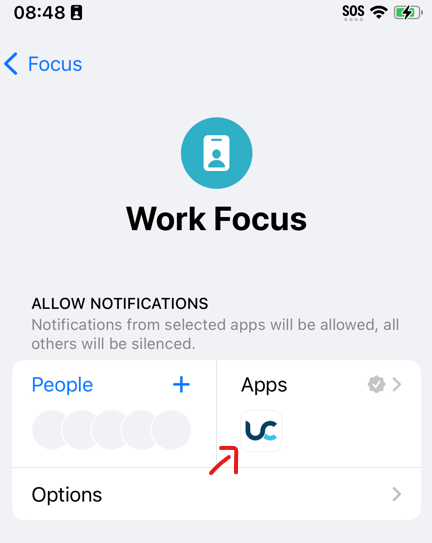
5. Check if you have Do Not Disturb or Focus Mode enabled
[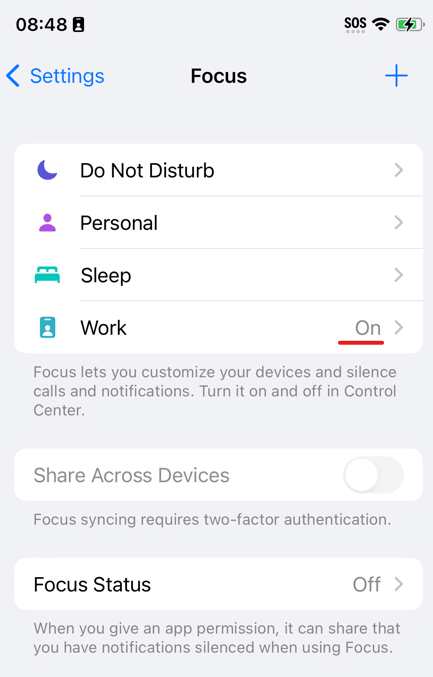](https://docs.precision-computer.com/uploads/images/gallery/2025-02/eI5CGju2SBMkdJ7G-image.png)
*Note: you may allow the app in those modes to still get through, by simply click on the mode and adding it to Apps List:*
[](https://docs.precision-computer.com/uploads/images/gallery/2025-02/Mppbb6vER5q3Cdh2-image.png)
6. If none of those worked, you may try deleting the App and Redownloading it and relogging in to see if that resolves it, and/or contact support for additional assistance in determining the issue.
#### No one can hear me...
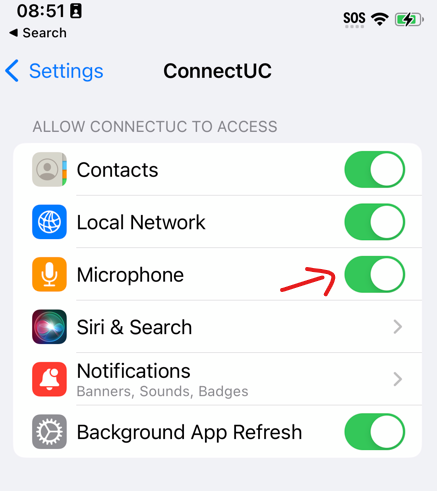
This is usually do to not allowing Microphone access in permissions, if you can hear someone on the other side and they can't hear you at all, check your permissions
[](https://docs.precision-computer.com/uploads/images/gallery/2025-02/JVn5rOp95L78zD6A-image.png)
#### App keeps logging out
Some phones will deactivate notifications and log you out if you haven't used the app at all within 1-2 weeks. You may try reinstalling the app (delete it and redownload it) to see if it helps, but usually you do want to use or interact with the app at least once a week. It's not really anything we can do, its generally Smartphone manufactures try to optimize your phone for speed and efficiency.
# Checking and Sending Fax on Connect UC Desktop
While you may email almost anyone, there are some that still like the traditional fax machine. Or some agencies that just refuse to update...
Checking and Sending Fax is simple, make sure it is enabled and the **correct Shared Fax Number Appears**, if not, you may call or text our support line or email us at
#### Checking Faxes
1. Open ConnectUC on your Desktop *(Don't have ConnectUC on your PC, [Click here to View Downloading ConnectUC](https://docs.precision-computer.com/link/125#bkmrk-desktop%3A-login-to%C2%A0ht))*
2. Look for Fax on Left Sidebar [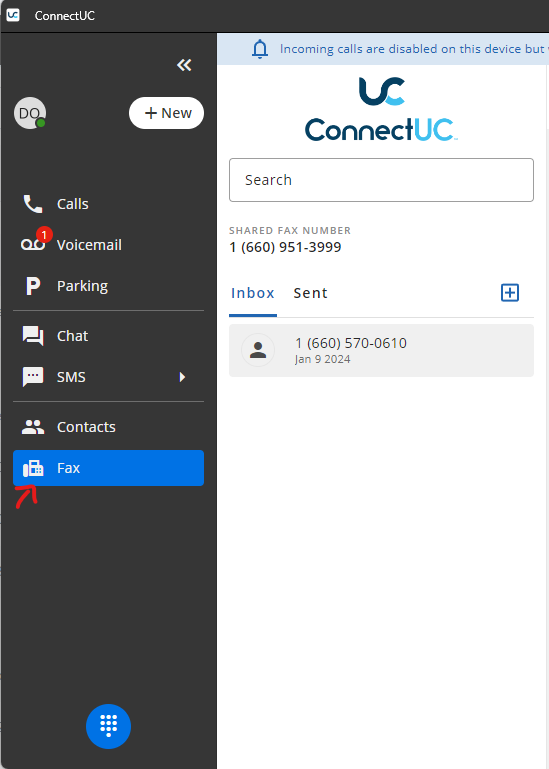](https://docs.precision-computer.com/uploads/images/gallery/2025-01/0rgcB4nCkeiO8g8V-image.png)
3. Under Inbox, you will see all the faxes that came in recently, you Download it, Print it, or Delete it (By simply clicking the appropriate icons when viewing the fax [](https://docs.precision-computer.com/uploads/images/gallery/2025-01/5kYPFJige6wX75Zh-image.png)
Sending a Fax
1. Same as Viewing Faxes, open the ConnectUC app on your Computer and Click Fax on Sidebar
2. Simply Press the + icon to get form to send a fax [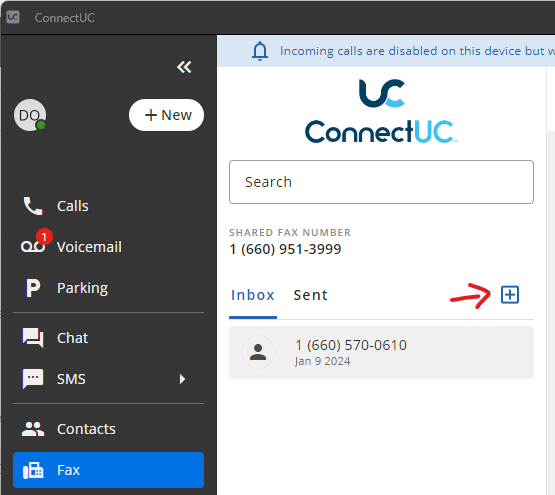](https://docs.precision-computer.com/uploads/images/gallery/2025-01/tYrNJh3V3b5nN8gH-image.png)
3. Simply Click on Up Arrow or drag your PDF (or other compatible file) on top of, to add your attachment, Fill in the Destination or choose from your Contacts, and press send. *(You may add Cover page attachment or Compose one by choosing the options)*[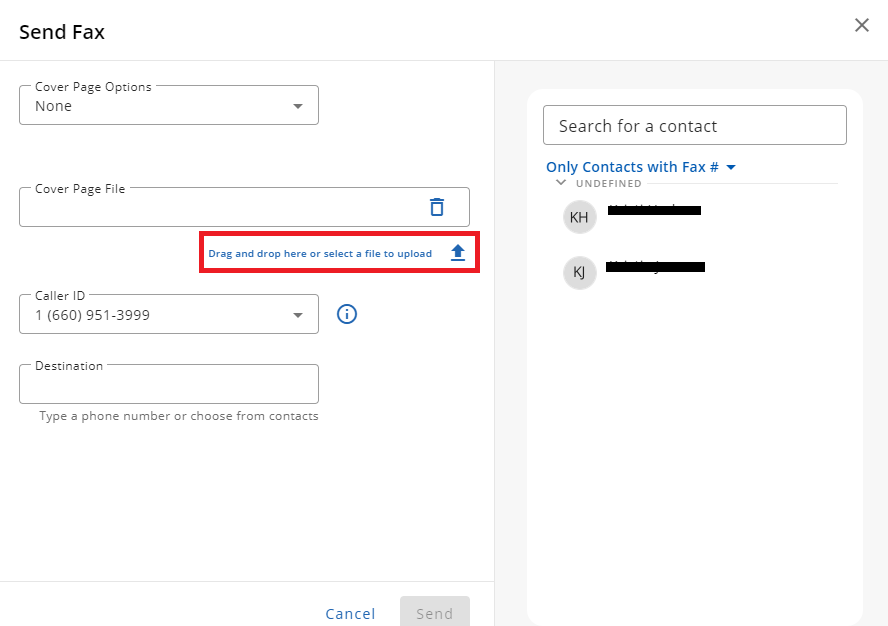](https://docs.precision-computer.com/uploads/images/gallery/2025-01/tvc4IOpT3dkkKiAL-image.png)
4. Once you attached your document and choose your Destination, press Send.
#### Checking Sent Faxes
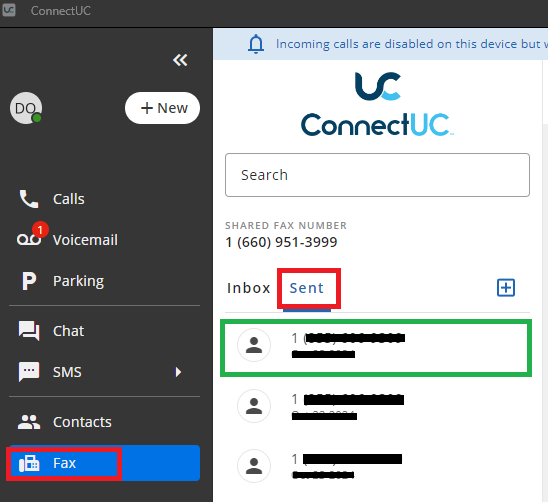
Simply Click "Sent" Link in Fax, and you will see your recent sent messages
***\*Note: With Shared Fax Numbers, the incoming faxes can be shared with multiple users in your organization, however, what you send out is only visible on yours. Same for other users, you will not able to view what other users send out.***
[](https://docs.precision-computer.com/uploads/images/gallery/2025-01/1OmMetaX6edzT06n-image.png)