# Cloud PBX - Tips and Tricks
# Schedule
# Add Holiday Hours - Holiday Closures
Adding Holidays is one of most common requests, as you want phones to provide message to callers letting them know you are closed for a holiday (Such as Independence Day, Christmas, Thanksgiving, New Years). Here is quick guide for best practice to set Holiday Hours. You may also add if your closed for training, meeting, events, or any other reason for closures or delays.
1. Login as Office Manager -> [https://pbx.precision-computer.com](https://pbx.precision-computer.com)
2. [](https://docs.precision-computer.com/uploads/images/gallery/2024-10/IBHRv6PHnOzS2qlS-image.png) Navigate to Time Frames
3. Review your current Time Frames and see if anything already matches that you may update the time on
Otherwise Click to
[](https://docs.precision-computer.com/uploads/images/gallery/2024-10/83h6fkUpa8Y9HCye-image.png)
4. Fill in the Name and Select Specific dates or ranges [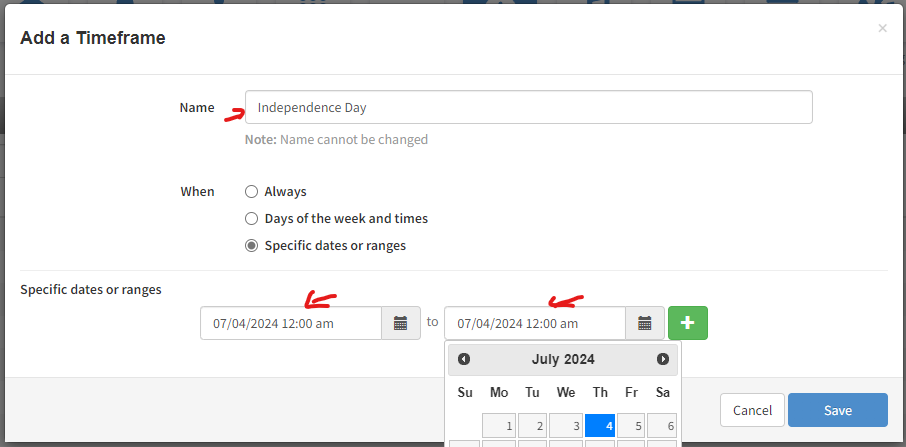](https://docs.precision-computer.com/uploads/images/gallery/2024-10/qHOj5EOjs1YFsky7-image.png)
***\*if it's a single day, you may just click on the day on from and to, and not worry about it having 12:00am on both (it will automatically include the whole day) If multiple days, make sure to adjust the time as well***
***\*You may repeat these steps of adding timeframes for each Holiday (if adding multiple)***
5. Add Greeting, using Text-To-Speech, Upload, or Record options (Example of Text-To-Speech below) [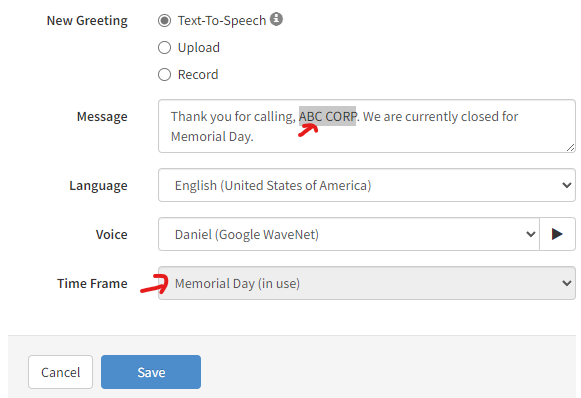](https://docs.precision-computer.com/uploads/images/gallery/2024-10/CVCAUsSxtjOtCp5d-image.png)
**Make sure to select the correct time frame**
***\*You may repeat this step for each Holiday (if adding multiple)***
6. Navigate to [](https://docs.precision-computer.com/uploads/images/gallery/2024-10/vtY0kC6PMC3aCitM-image.png)
7. Choose your Main Routing -> Answering Rules [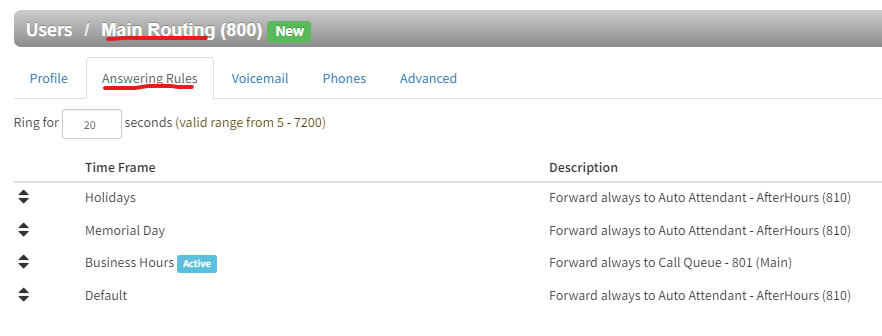](https://docs.precision-computer.com/uploads/images/gallery/2024-10/jxpPUTN2H6NhJfRY-image.png)
***Generally Ext 800 is used for Main Routing***
8. Go ahead and [](https://docs.precision-computer.com/uploads/images/gallery/2024-10/7WMOPvz4SI6SDc9L-image.png)
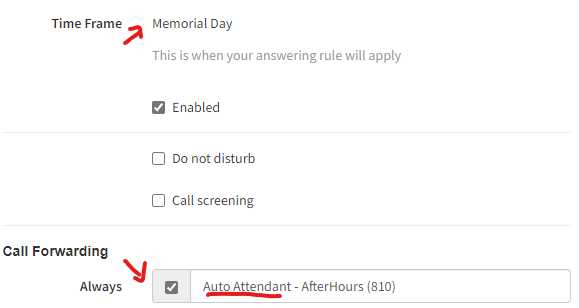
9. Select Time Frame and Call Forwarding: Always: Auto Attendant for your AfterHours *(Usually 810)*
[](https://docs.precision-computer.com/uploads/images/gallery/2024-10/U5CqaZgnME1jAX8C-image.png)
***\*You may repeat this step for each Holiday (if adding multiple)***
10. Once all your Holiday's are set, make sure to have all your Time Frames in order needed [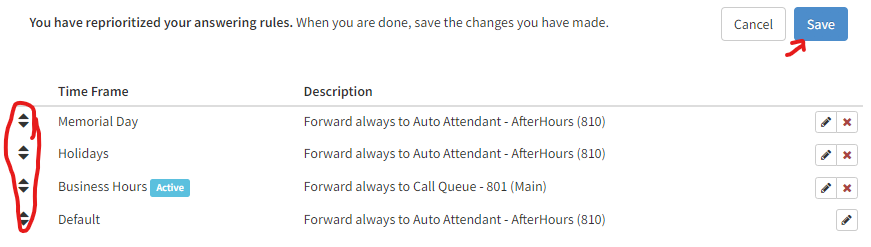](https://docs.precision-computer.com/uploads/images/gallery/2024-10/w523adcbsxltem1U-image.png)
You can click arrows on left and drag up or down the rows, then click save once everything looks good.
***\*Most times default should be very bottom and business hours right above it, and all the other hours and time frames above them.***
**REMEMBER: It goes from top to bottom, so if time frame matches one at top then it will exit using what you have set on that time frame.**
11. Take moment to double check everything...
Here is generally a good example of what it should look like:
[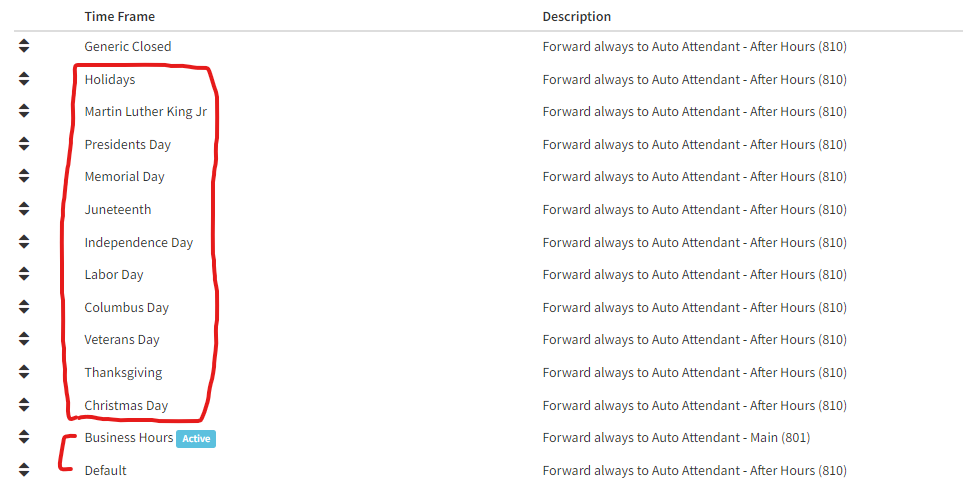](https://docs.precision-computer.com/uploads/images/gallery/2024-10/5oM5RRzp09EFEpOt-image.png)
# Greeting Templates
Here is generic templates to use for greetings
Thank you for calling **Company Name Here**. You may dial an extension or choose from the following options.
Press 1, for Dispatch.
Press 2, for ETA on Loads.
Press 3, for Accounting.
Press 4, for all other inquiries.
The Snom PA1 cannot be setup as both a listener and a relay at the same time.
Firmware version 8.9.3.xx + required PA1 and 10.1.169.15+ for PA1+
Known Good Firmware (PA1+): [https://downloads.snom.com/fw/10.1.169.15/bin/snomPA1P-10.1.169.15-SIP-r.bin](https://downloads.snom.com/fw/10.1.169.15/bin/snomPA1P-10.1.169.15-SIP-r.bin)
##### Manually
After you have configured the PA1 with an extension on one of the four available Identities, you can configure that extension for Multicast Paging.
1. From the Web User interface of the PA1, navigate to the Identity you want to configure.
2. Select the RTP tab
3. Configure the Multicast Relay Address and listening port. i.e. 224.0.1.116:5001
4. Select Apply and then Save to save the settings change.
# Sample Call Flow
[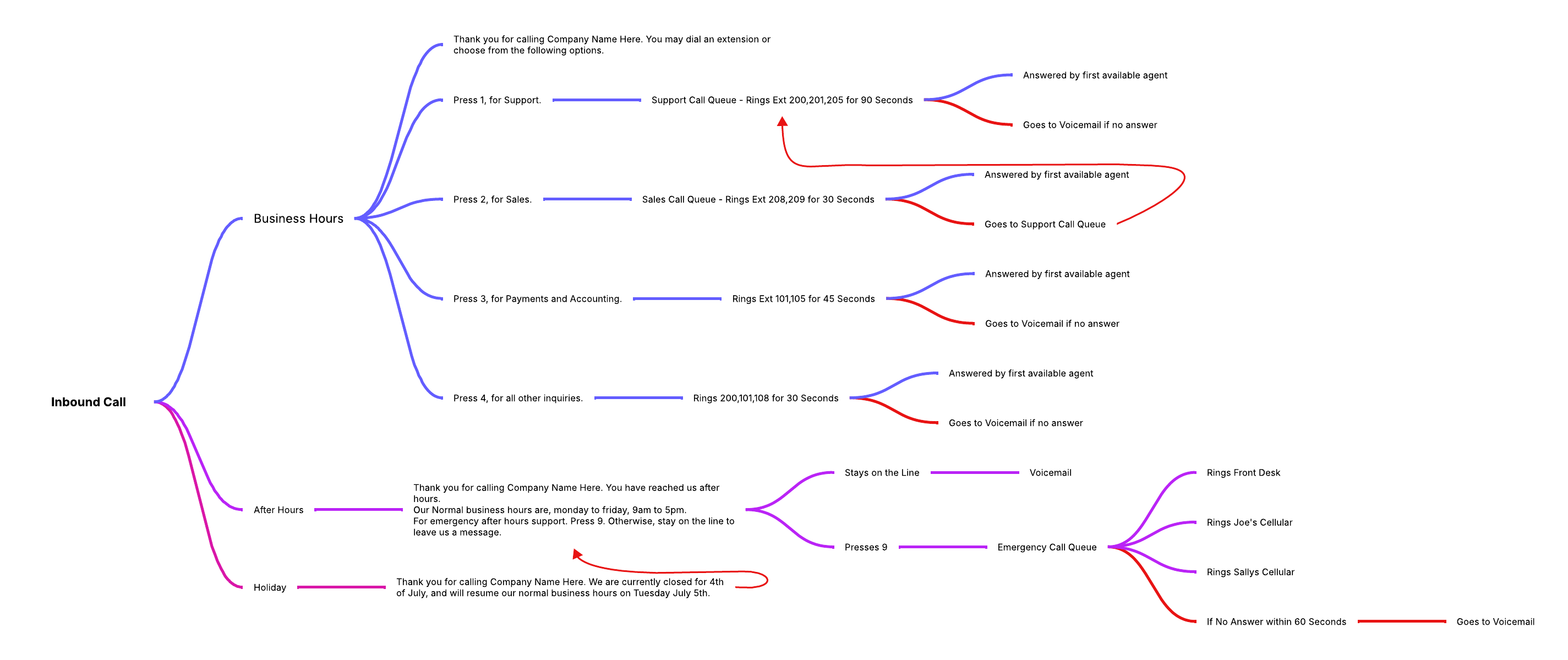](https://docs.precision-computer.com/uploads/images/gallery/2025-08/0pYBXdOru5nvOeAo-call-flow-example-2.png)
*\*Click on photo to make it larger*
# 🏆 Top Features
- 🔀 **Live Call Move (Desk ↔️ Mobile)**
Start a call on the desk phone → tap **Move Call** in the ConnectUC app to move it to mobile. Move it back to desk with dialing \*38. *Great for “I’m leaving the office now.” and without hanging up or the caller knowing you switched phones.*
- 🔘 **One‑Click BLF Transfer**
While on a call, press a colleague’s **BLF** key to blind transfer; or hold + BLF for attended/consultative. *Eliminates “let me find their extension” moments.*
- 💬 **Business SMS/MMS**
Send/receive texts from the business number on mobile & desktop; shared inbox for teams. *Customers prefer texting-meet them there.*
- 🧾 **eFax from Anywhere**
Upload a PDF or snap a photo → send as fax; receive faxes in the app as PDFs. *No fax machine needed.*
- 🛎️ **Answering Rules on Your Phone**
In ConnectUC: change **call forwarding, schedules, greetings, and DND** in seconds. *Perfect for holidays, travel, or sudden changes.*
- 🗂️ **Visual Voicemail + Transcription**
Read voicemails, tap‑to‑call back.
- 👀 **Presence + Team Status**
See who’s on a call/away/on mobile. Reduce transfers to unavailable users.
- 📞 **Call Park, Page, Intercom**
Park a call to 701; announce via paging; anyone picks up. Door/intercom support for office workflows.
- 📈 **Real‑Time Dashboards & Wallboards**
Show queue stats, missed calls, agent status*.*
- 🧑💻 **Click‑to‑Call + CRM Screen Pops**
From browser/CRM, click to dial; incoming calls open the contact record.
- 🌐 **Web Phone (WebRTC)**
Make/receive calls from any browser - no software install needed.